Changing Your Sign-in Email
Sign in with a different email address, in every company you belong to.
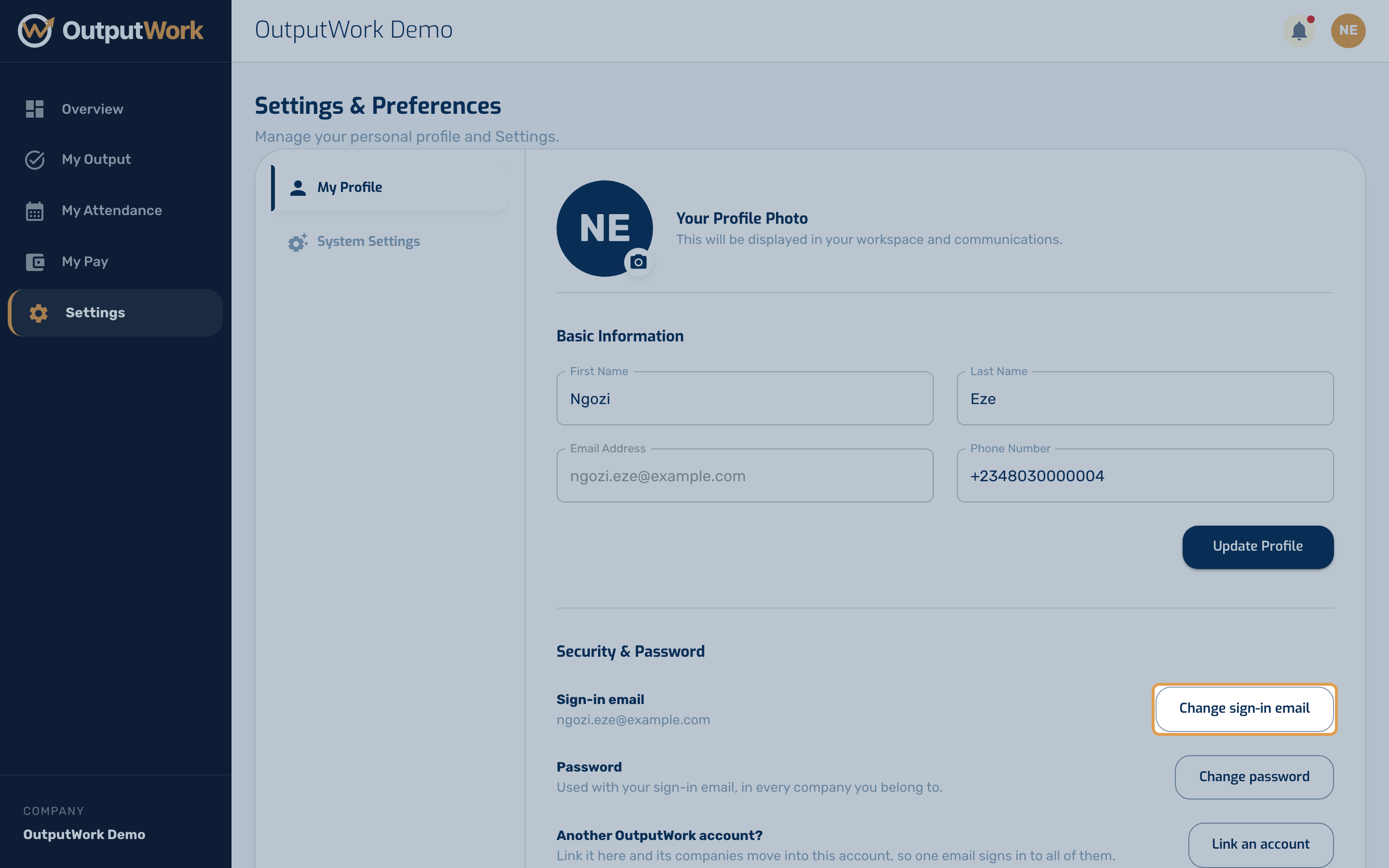
Step 1. The email you sign in with is yours, and the same in every company you belong to, so only you can change it. Open Settings: under My Profile, Security & Password shows your Sign-in email. Click Change sign-in email.
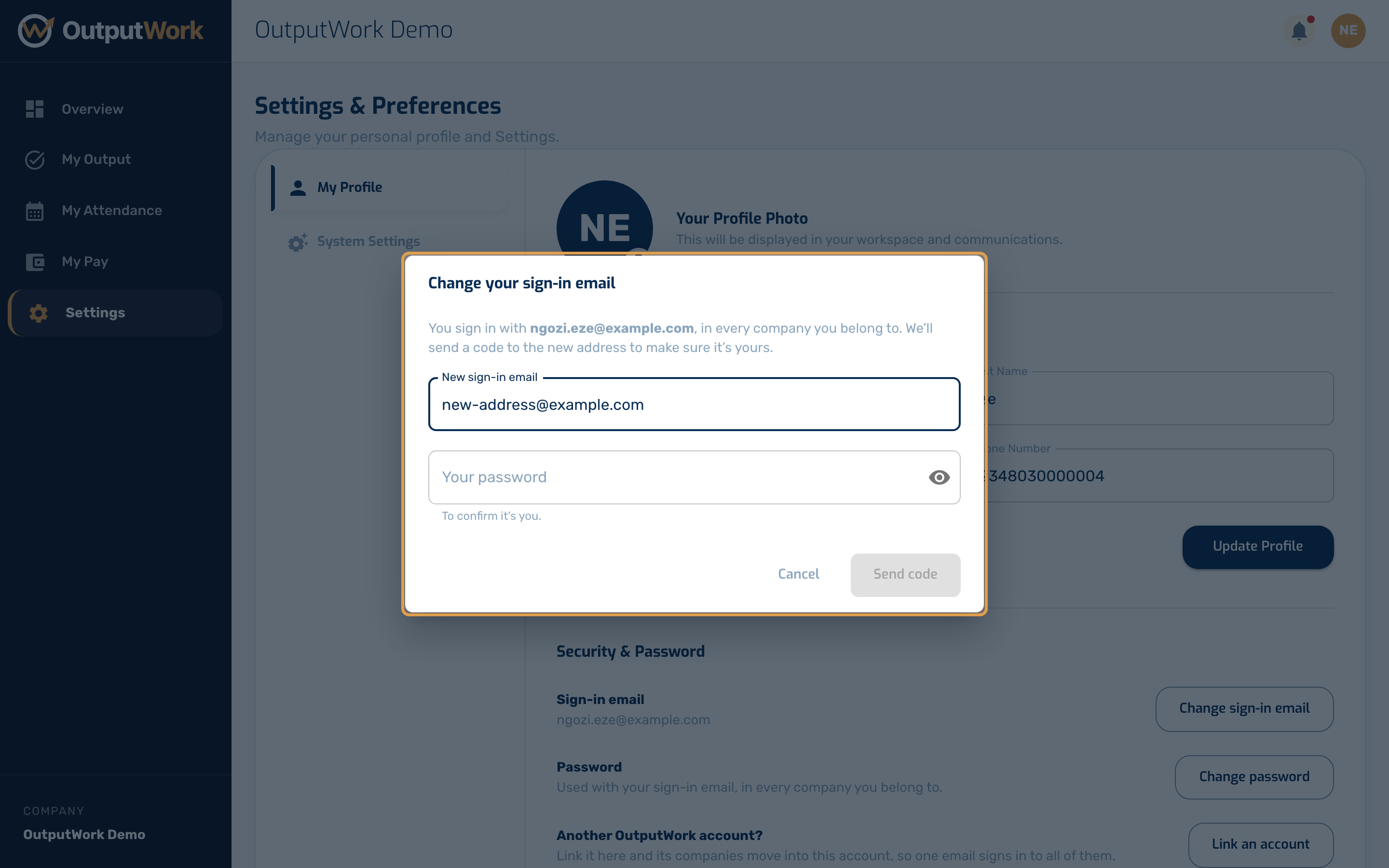
Step 2. Enter the new address and your current password, then click Send code. OutputWork emails a 6-digit code to the new address, to make sure it's yours. Nothing has changed yet.
Step 3. Enter the code from that email and click Change sign-in email. The code works for 15 minutes and allows five tries; Send a new code sends another. When it's right:
- you sign in with the new address from then on, in every company;
- each company that had your old address now has the new one. A company that uses a different address for you keeps it, and so does one where someone else already uses the new address: the message names it;
- your old address gets an email saying it changed. If you didn't make the change, contact support straight away;
- you are signed out on your other devices. This one stays signed in.
Step 4. If the new address already has an OutputWork account, it can't become your sign-in email. If that account is yours too, link the two instead: see Linking Two Accounts.
Your organization's admins can change the address they have for you. Once you have signed in, they can't change the one you sign in with.