Linking Two Accounts
Bring a second OutputWork account into this one, so one email signs in to all your companies.
Step 1. You may have two OutputWork accounts: you started a second company with another email, say, or a company invited you at a different address. Linking brings the other account's companies into this one, so one email signs in to all of them.
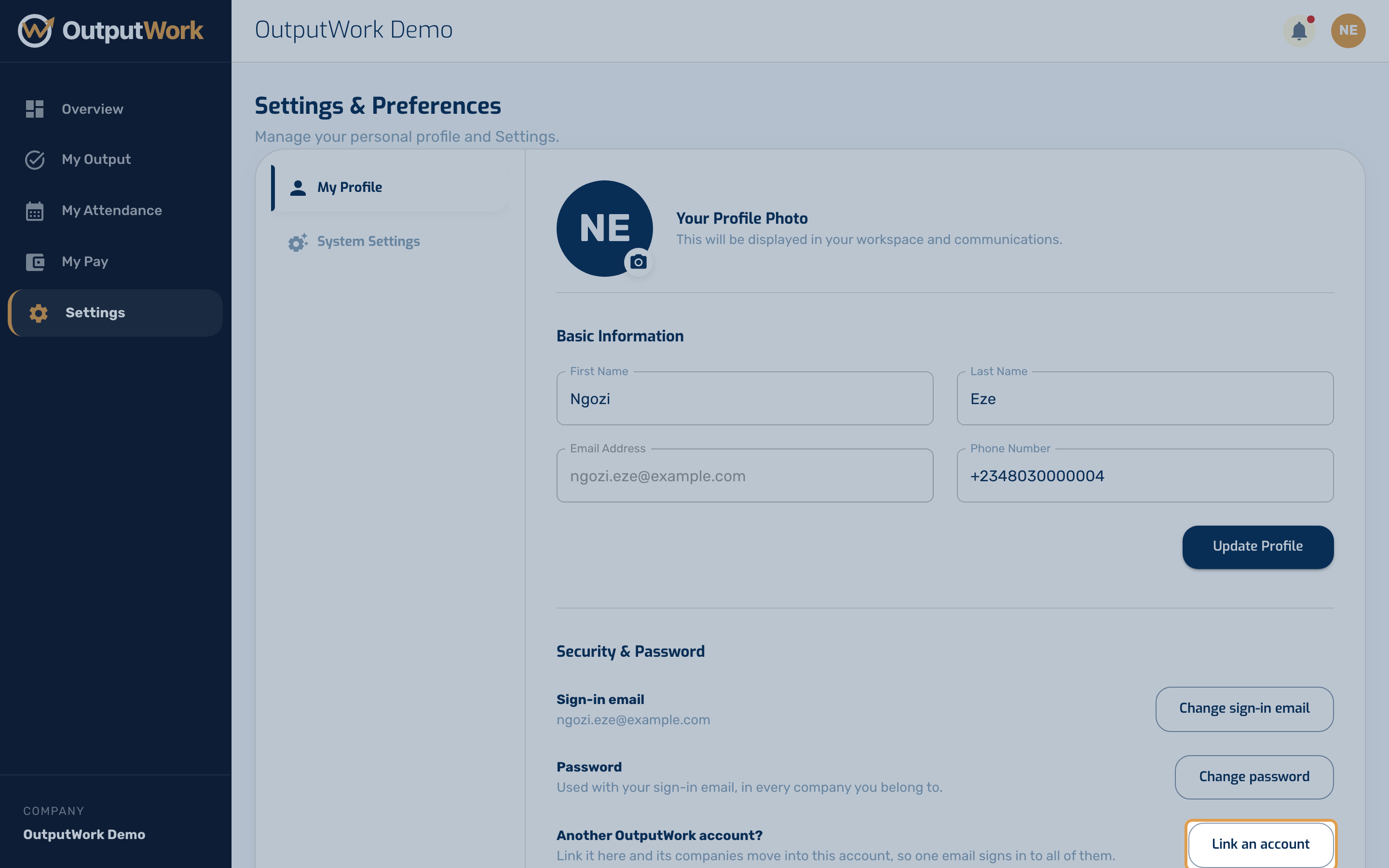
Sign in to the account you want to keep. Open Settings: under My Profile, Security & Password, click Link an account. To keep the other account's email instead, sign in with that one and link this one.
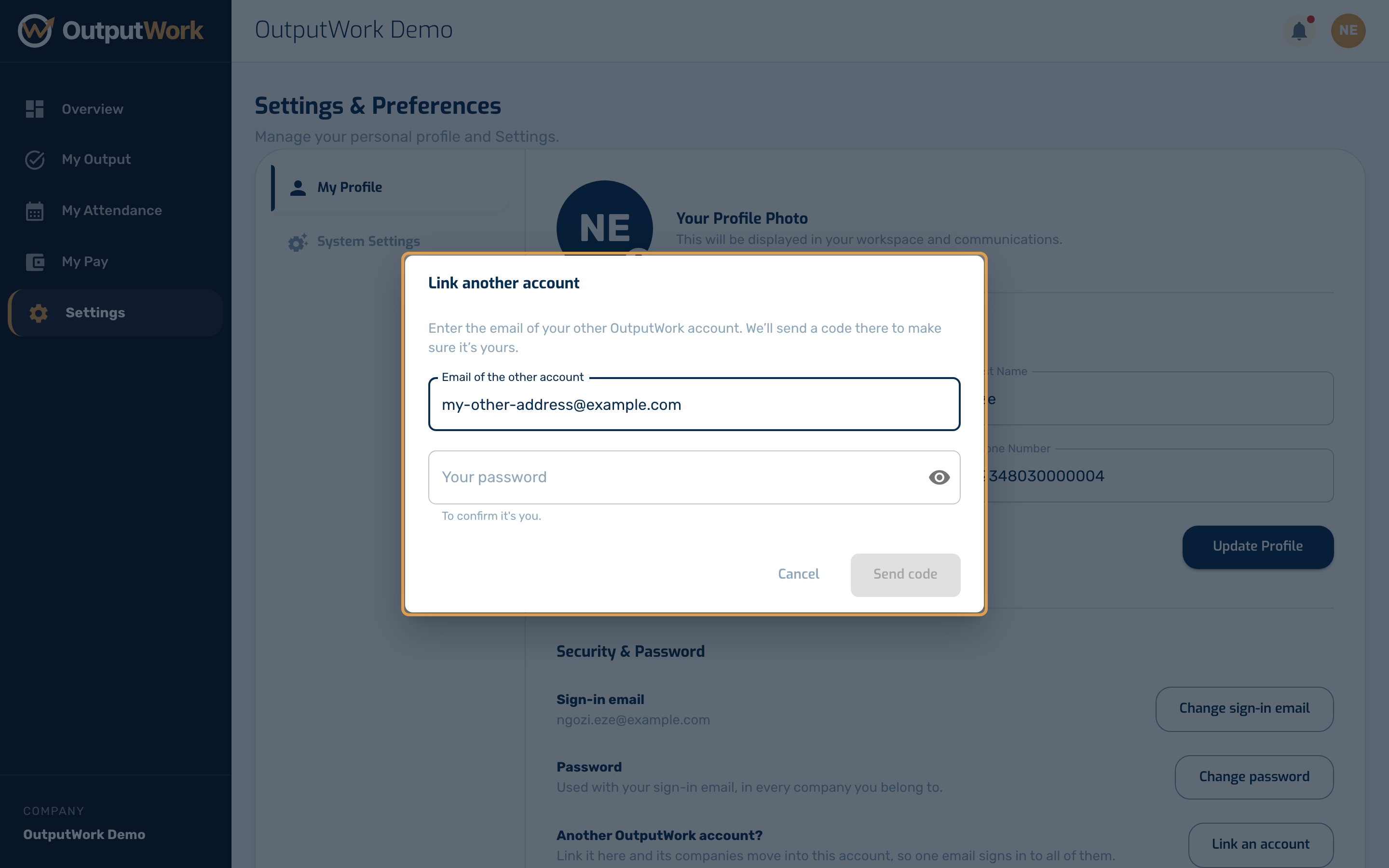
Step 2. Enter the other account's email and your password, then click Send code. OutputWork emails a 6-digit code to that address, to make sure the other account is yours.
Step 3. Before you confirm, the dialog says what linking does. Enter the code and click Link accounts:
- every company of the other account moves into this one, with its work, attendance and pay, and any invitation it was waiting on;
- the other account is deleted, and its address gets an email saying so. From then on, only this account's email signs in;
- each company keeps the address it had for you, so its messages still reach you there.
The switch menu shows the new companies straight away.
Step 4. Linking can't be undone in the app. If you linked the wrong account, contact support.
Two accounts in the same company can't be linked. That would make you two people there, with two sets of work and pay. Ask the company to remove one of them first, or contact support.