Setting Your Password
What to do when you are invited to join an organization on OutputWork.
Step 1. You do not sign up for OutputWork as a team member — someone in your organization invites you. You will get an email titled Setup your account; the link in it brings you here.
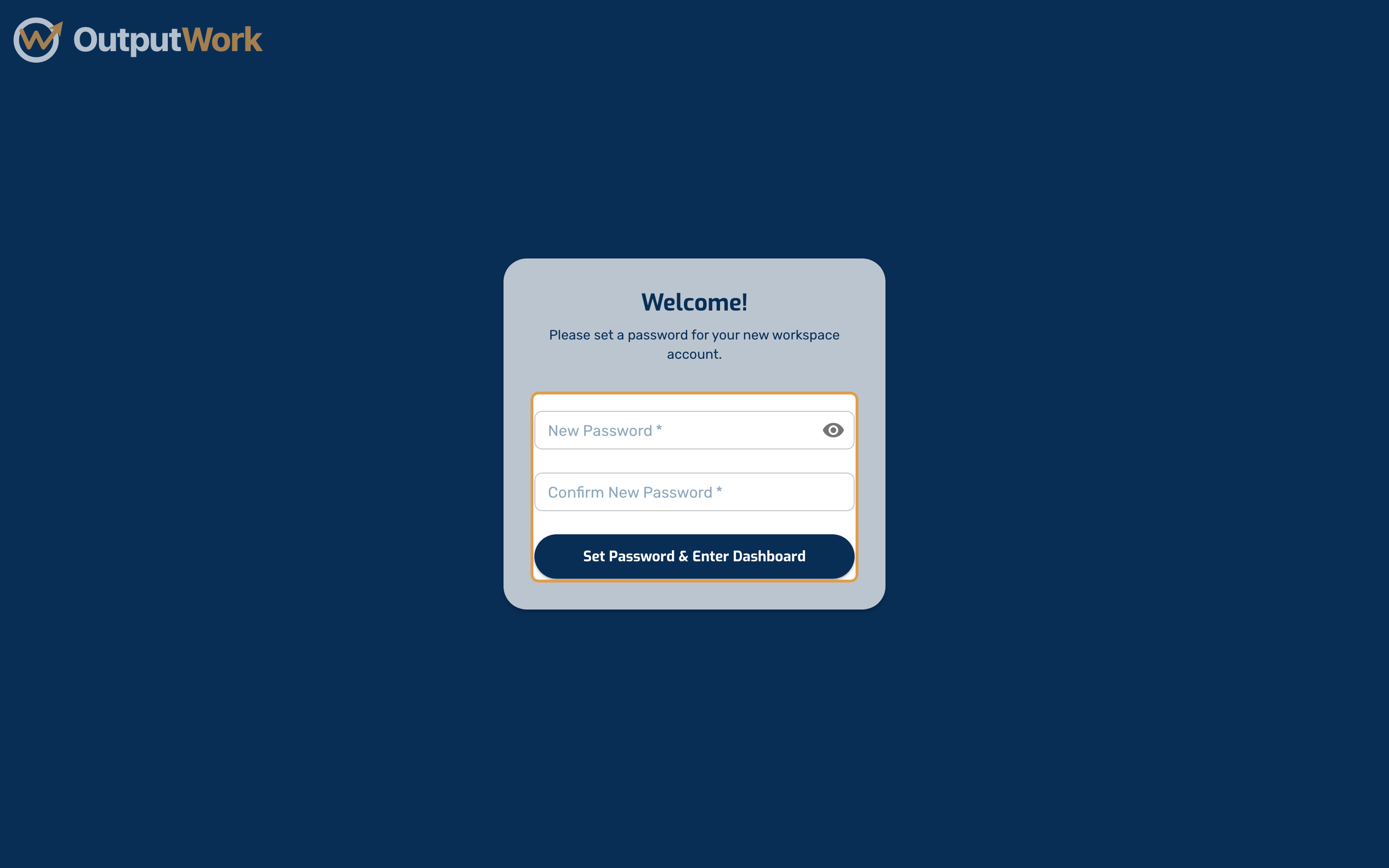
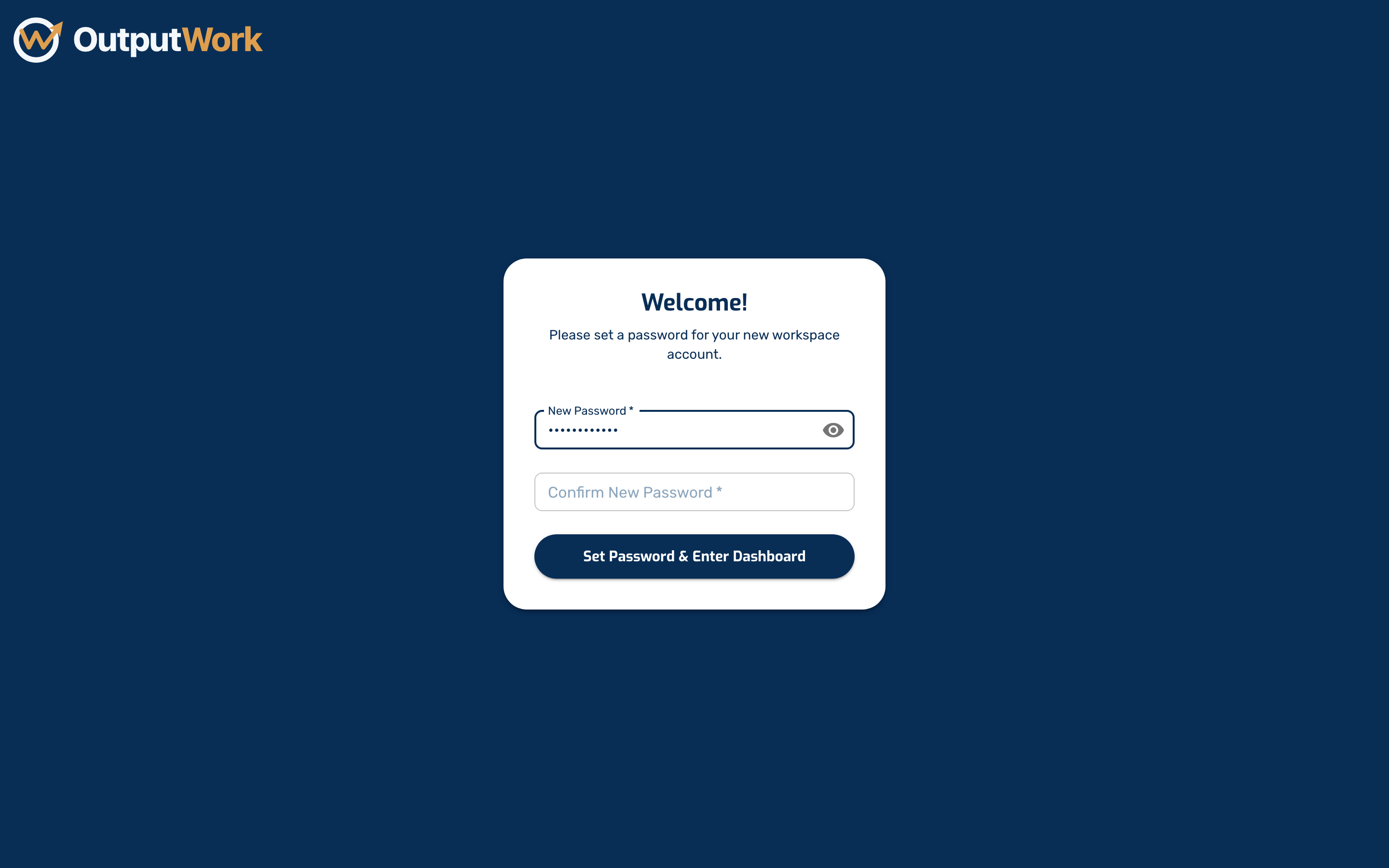
Step 2. Choose a password of at least 8 characters, type it again to confirm, then click Set Password & Enter Dashboard. That takes you straight into your workspace — there is nothing else to set up.
The link in your email works for 24 hours, and only once. If it has run out you will see Link Expired or Already Used. If you had already confirmed your email, use Forgot / Set Password on that page to get a fresh link; otherwise, ask whoever invited you to send the invitation again.
Step 3. Already use OutputWork with a different email? Then you don't need a second account. Below the form, click Add (the company's name) to that account, and sign in with the email and password of the account you already have. The invitation is added to that account and accepted, and the company opens. Nothing is set up for the new address: you sign in with your usual email, for every company.
The choice is there only until you set a password. If you click the link in the email again after using it, it says We could not use that link: sign in with the account you added the company to.