Billing and Seats
Check your plan, see how many seats you are using, and review past payments.
Step 1. Billing & Plan shows your current plan, when it renews, how many of your seats are in use, and your payment history. A seat is one person in your workspace.
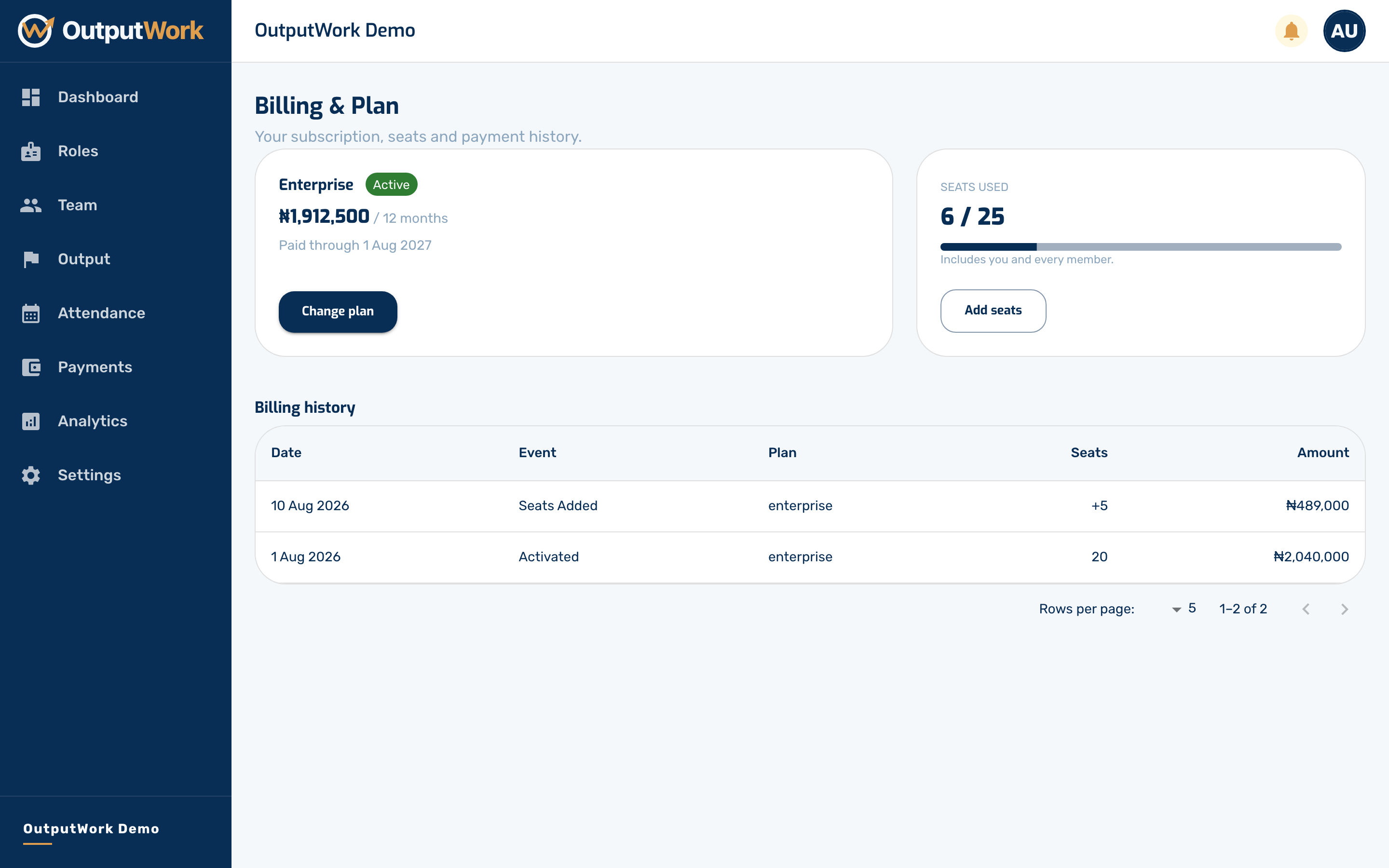
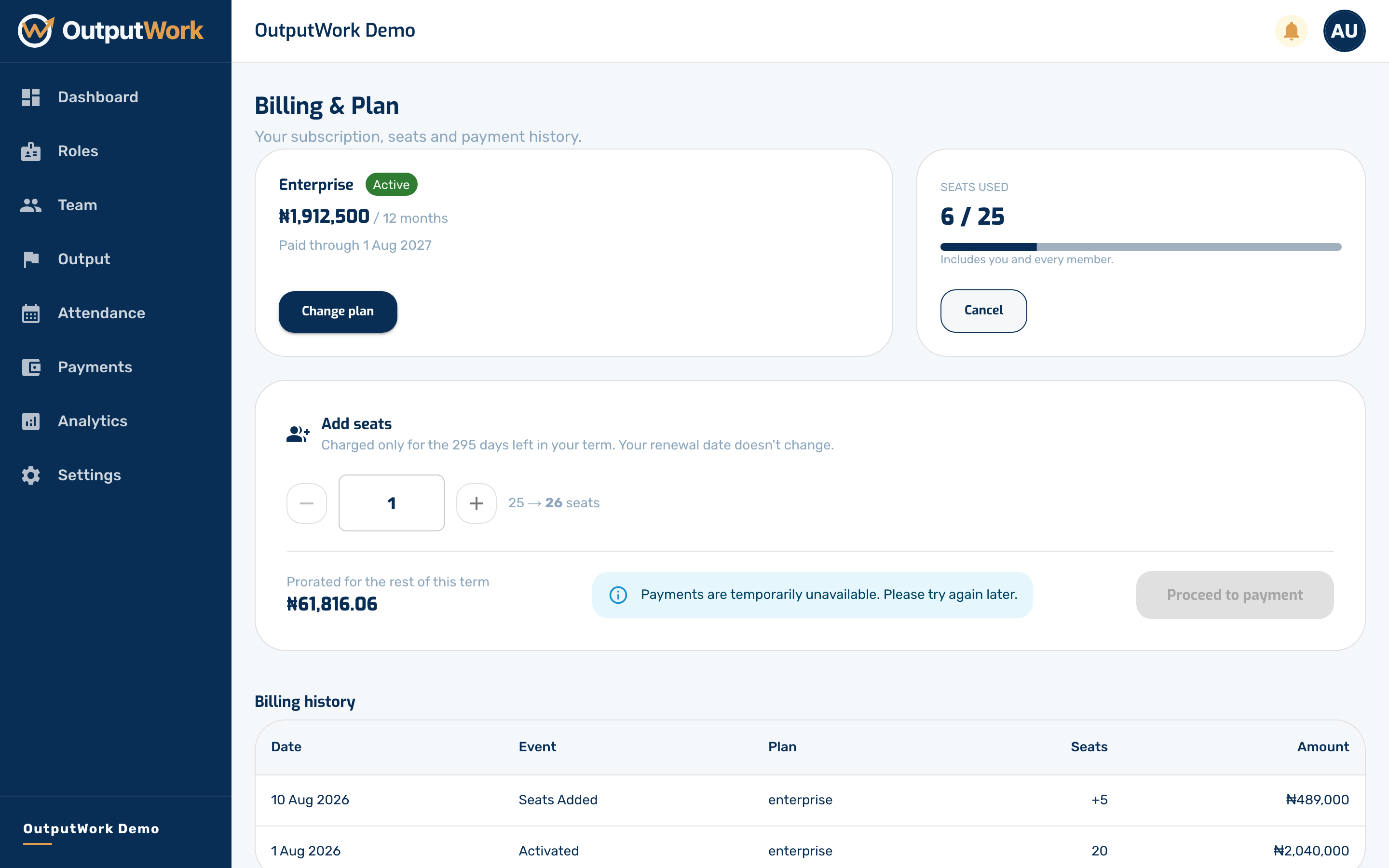
Step 2. Change plan opens the plan chooser again. Use it to move between plans, or to renew — renewing extends your subscription and moves your renewal date forward.
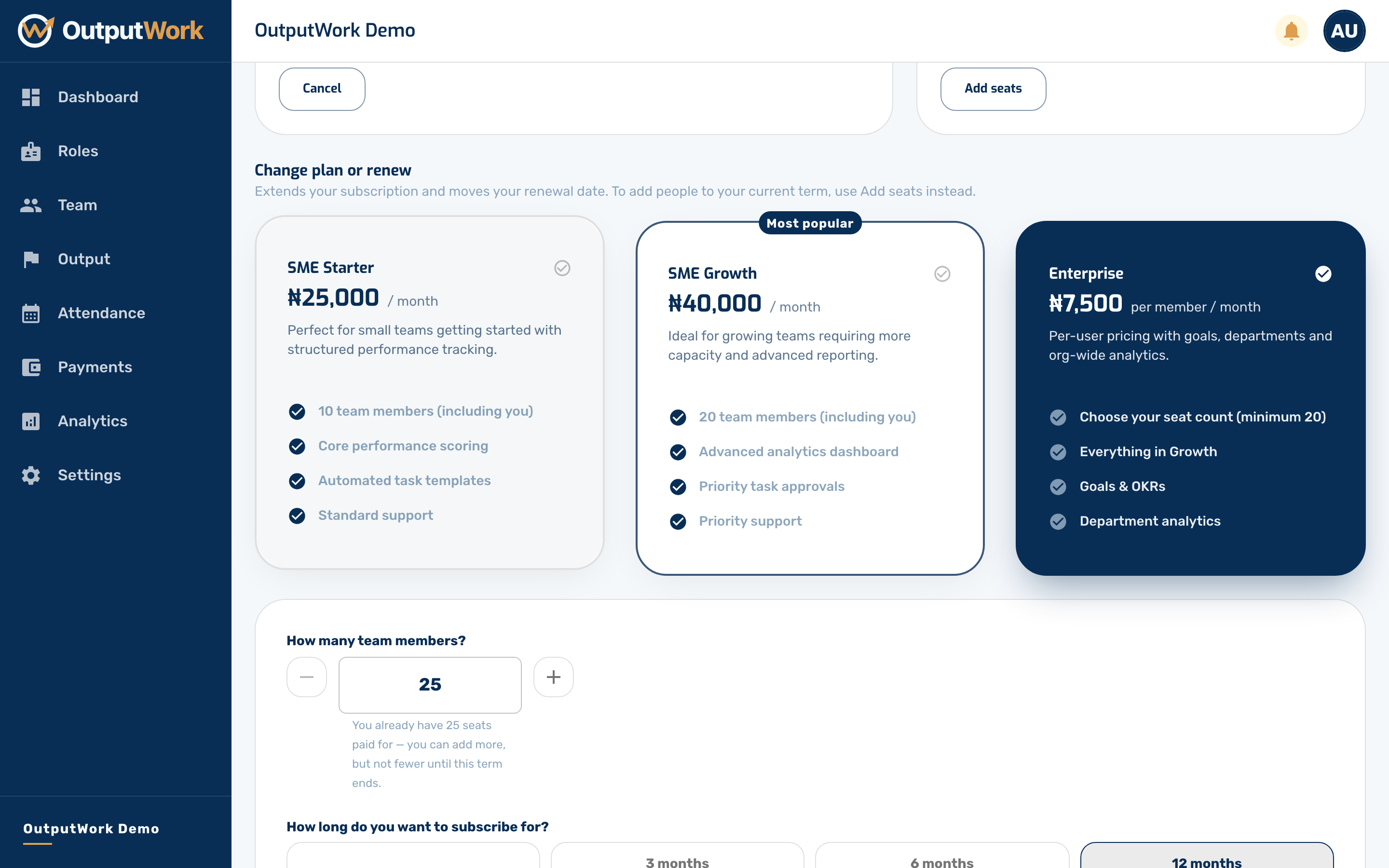
Step 3. Add seats is the one to use when you simply need room for more people in your current term. You are charged pro rata for the time left, and your renewal date does not move.
Whichever you choose, you pay with Paystack and come back to Billing & Plan, which shows Confirming your payment… until Paystack confirms it. The page updates by itself — there is no need to reload.
Step 4. When a subscription ends, a banner at the top of the workspace tells everyone, and only the owner can renew it:
- Your free trial ends in N days: choose a plan before then to keep your workspace.
- This workspace becomes read-only in N days: the subscription has expired, and there are a few days' grace. Renew before then.
- This workspace is read-only: everything can still be seen, but nothing can be changed — no clock-ins, submissions or payroll — until the owner renews from Billing & Plan.
Troubleshooting Billing & Plan Features
- Workspace is Read-Only (ORG_READ_ONLY): If a subscription lapses, the workspace enters read-only mode to safeguard company data. Members can view records, but cannot submit tasks, clock in, or change settings until the Organization Owner renews under Settings > Billing & Plan.
- AI Support Assistant (Enterprise Plan): The in-app AI Support Assistant is exclusive to organizations on the Enterprise plan. Organizations on SME plans use the Help Center documentation and support tickets. Owners can upgrade to Enterprise from Settings > Billing & Plan.