Creating Departments and Roles
Set up your organization's structure before inviting people into it.
Step 1. Open Roles from the sidebar. The page has three tabs: Roles Directory, Departments and Org Chart Hierarchy.
Start with Departments. A department is the broad grouping your roles sit inside — Engineering, Design, Operations — and it is what the filters and analytics throughout the app group people by.
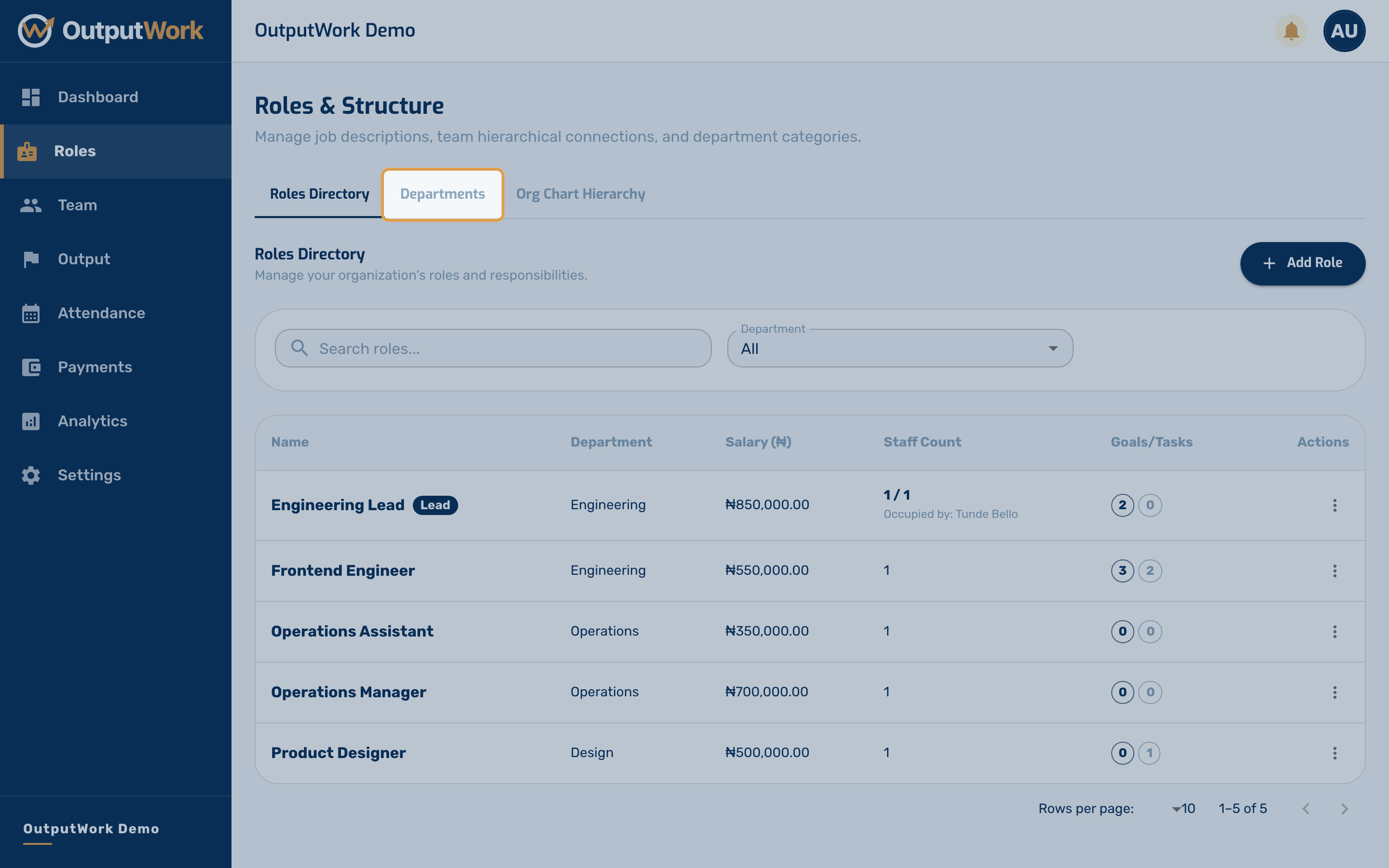
Step 2. Click Add Department.
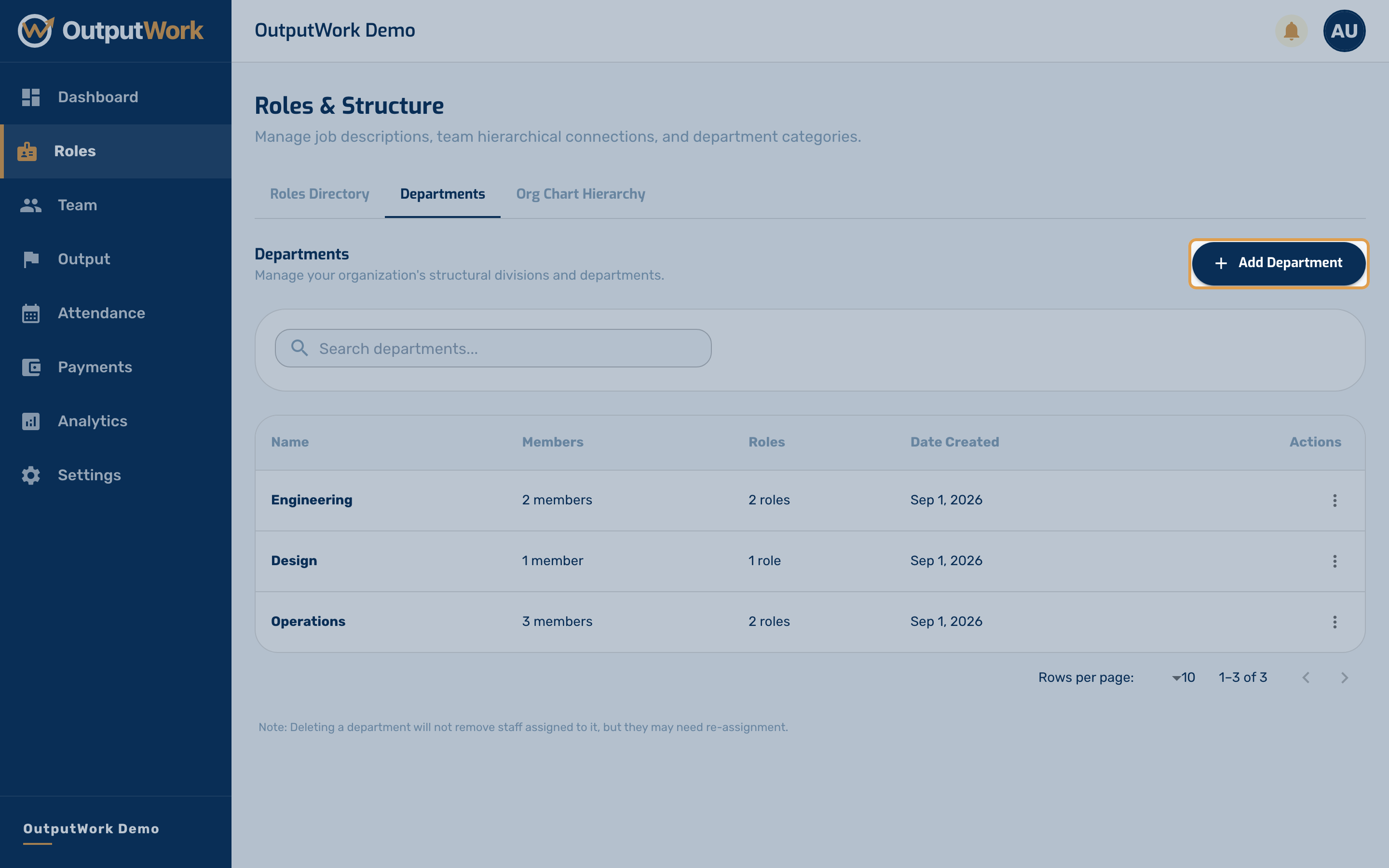
Step 3. A department needs nothing but a name. Type it and click Create.
Keep the list short — departments are for grouping and reporting, not for job titles. The job title is the role, which comes next. Deleting a department later does not remove the staff assigned to it, but they will need re-assigning.
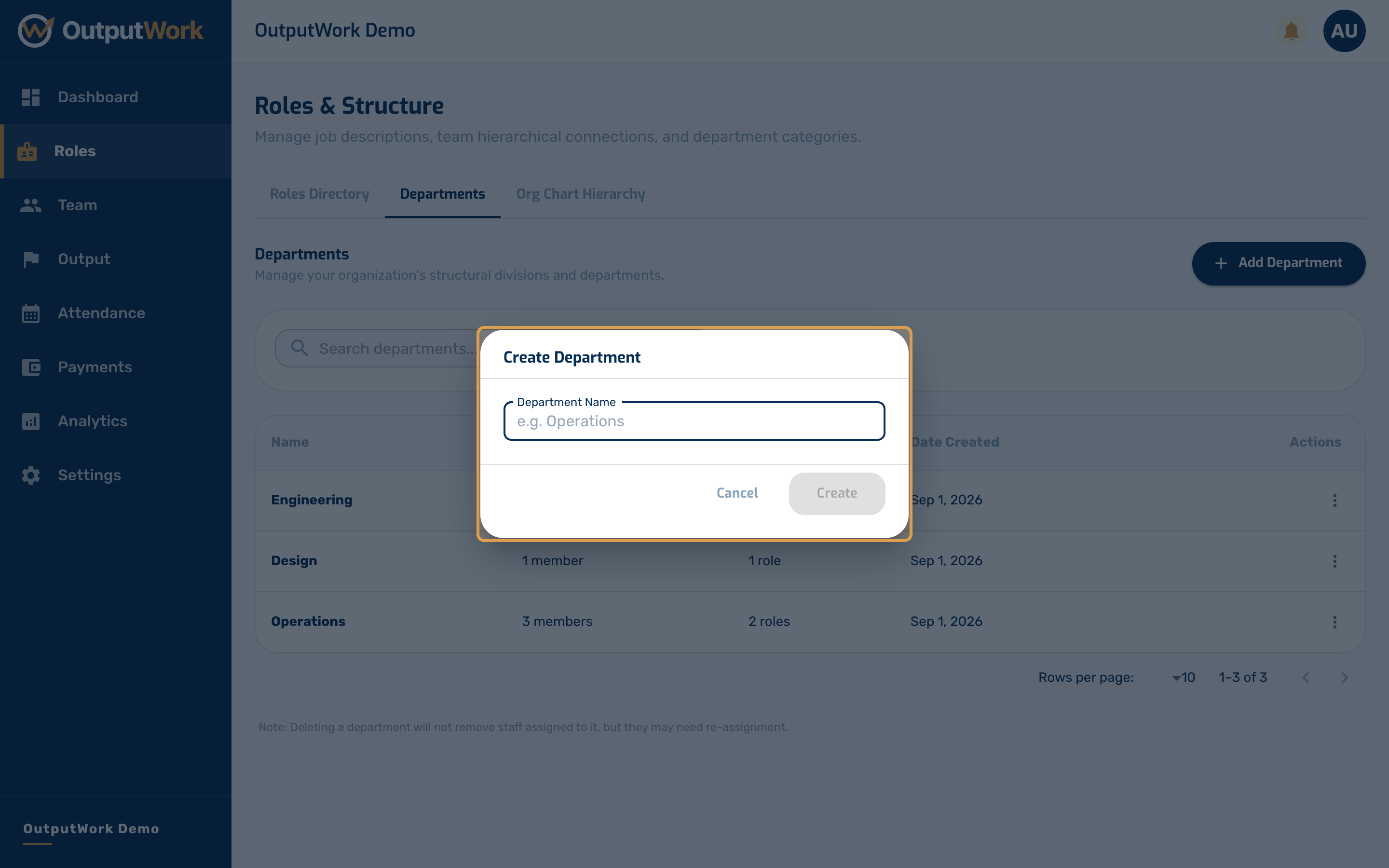
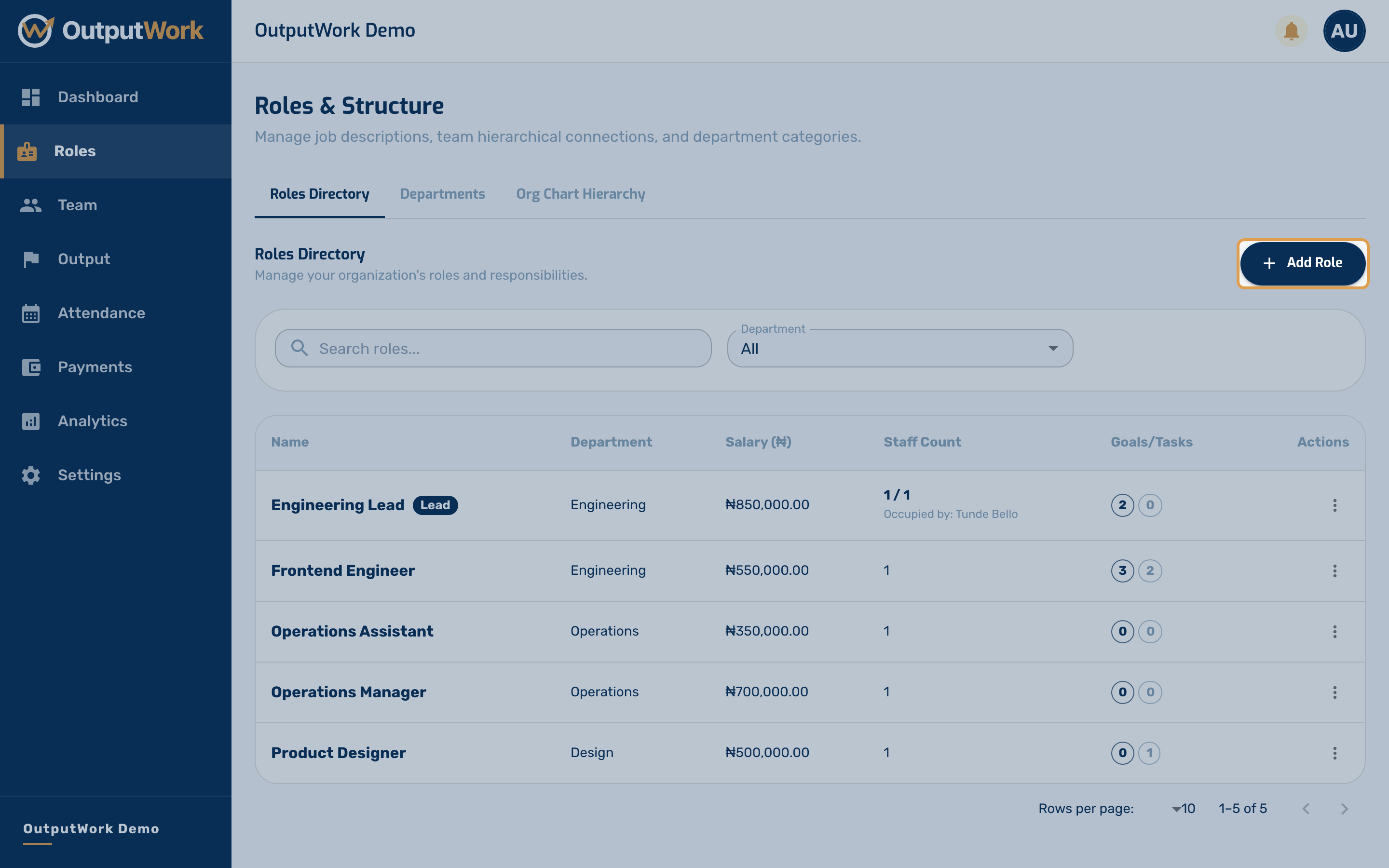
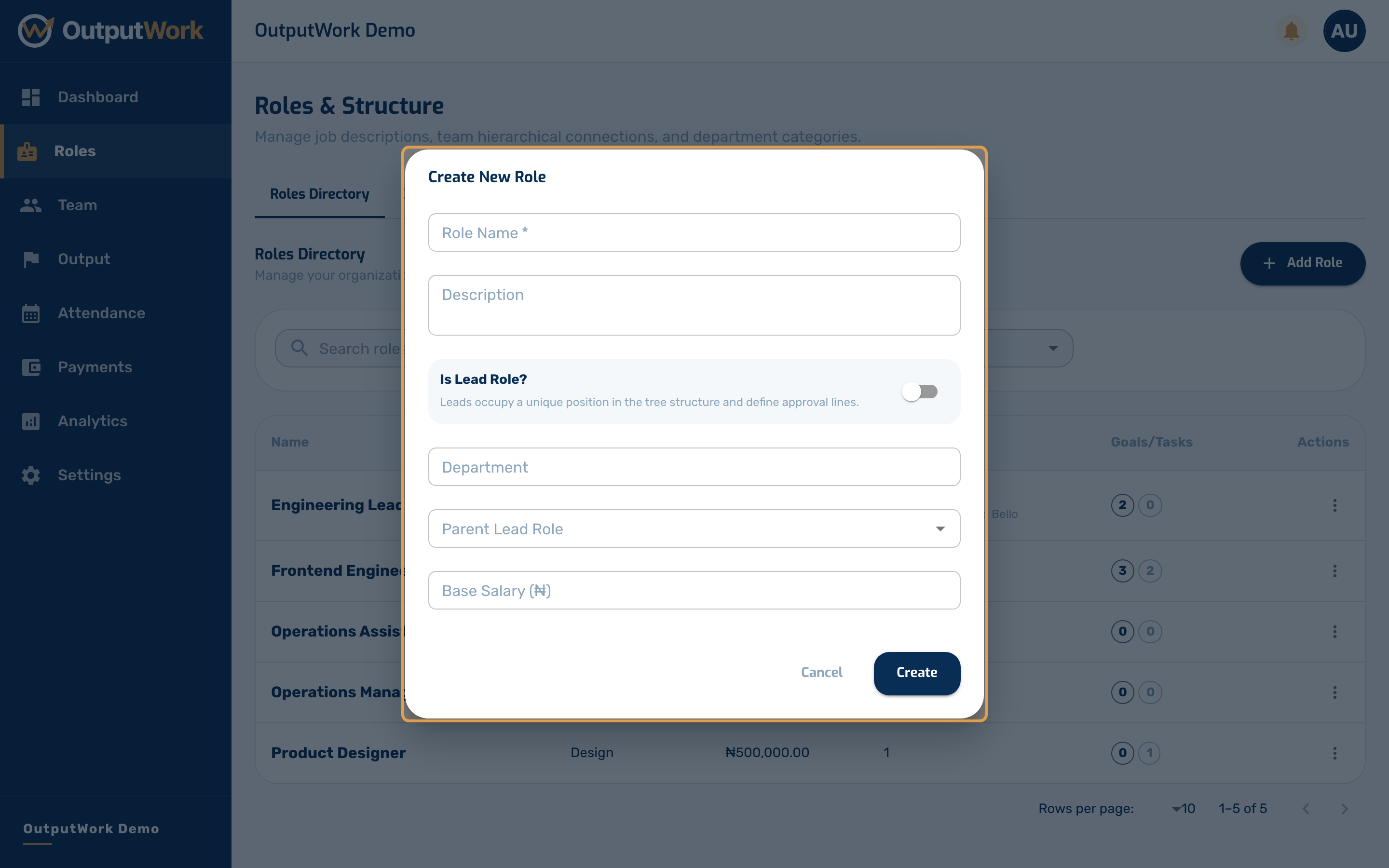
Step 4. Now switch to Roles Directory and click Add Role. A role is a job: its description, the department it belongs to, and the salary attached to it.
Roles do most of the work in OutputWork, so it is worth getting them right before inviting anyone into them.
Step 5. Work down the form. Each field does something specific:
- Role Name and Description — what the job is
- Is Lead Role? — a toggle. Turn it on and whoever holds this role gets a My Team page and can review the work of everyone whose role points at theirs. A lead role can only be held by one person at a time
- Department — the grouping you created in the previous step
- Parent Lead Role — who reviews this role's work. Leave it as No Parent (Root Role) and only owners and admins can approve their submissions
- Base Salary (₦) — what payroll pays whoever holds this role. It is set on the role, not the person, so everyone in the same role is paid the same
Click Create. The role appears in the directory straight away, ready for you to attach task and goal templates to.
Troubleshooting & Validation Rules
- "This lead role can have a maximum of 1 active occupant": A lead role is limited to one active team member at a time. To assign someone else as the lead, first reassign or remove the existing occupant from that role in the Team directory.
- Department Assignment: Every role must belong to a valid department. Create the department under the Departments tab before creating the role.
- Base Salary (₦): Enter a non-negative numerical amount in Naira (e.g. 500,000). The base salary applies to anyone holding the role and determines payroll calculations.