Handing Over Ownership
Make one of your managers the owner of the company.
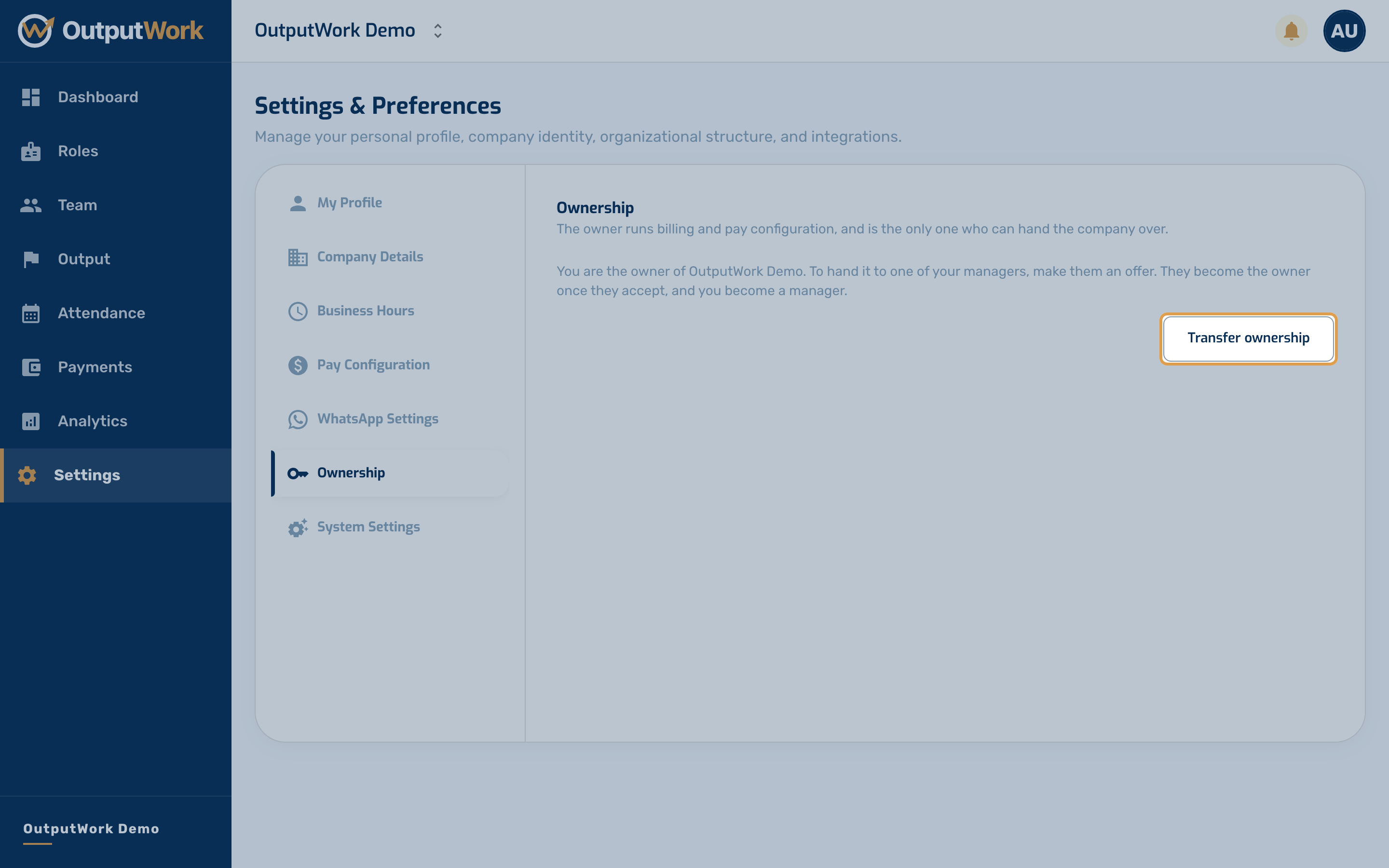
Step 1. A company has one owner. The owner runs Billing & Plan and Pay Configuration, and is the only one who can hand the company over. To make one of your managers the owner, open Settings → Ownership and click Transfer ownership.
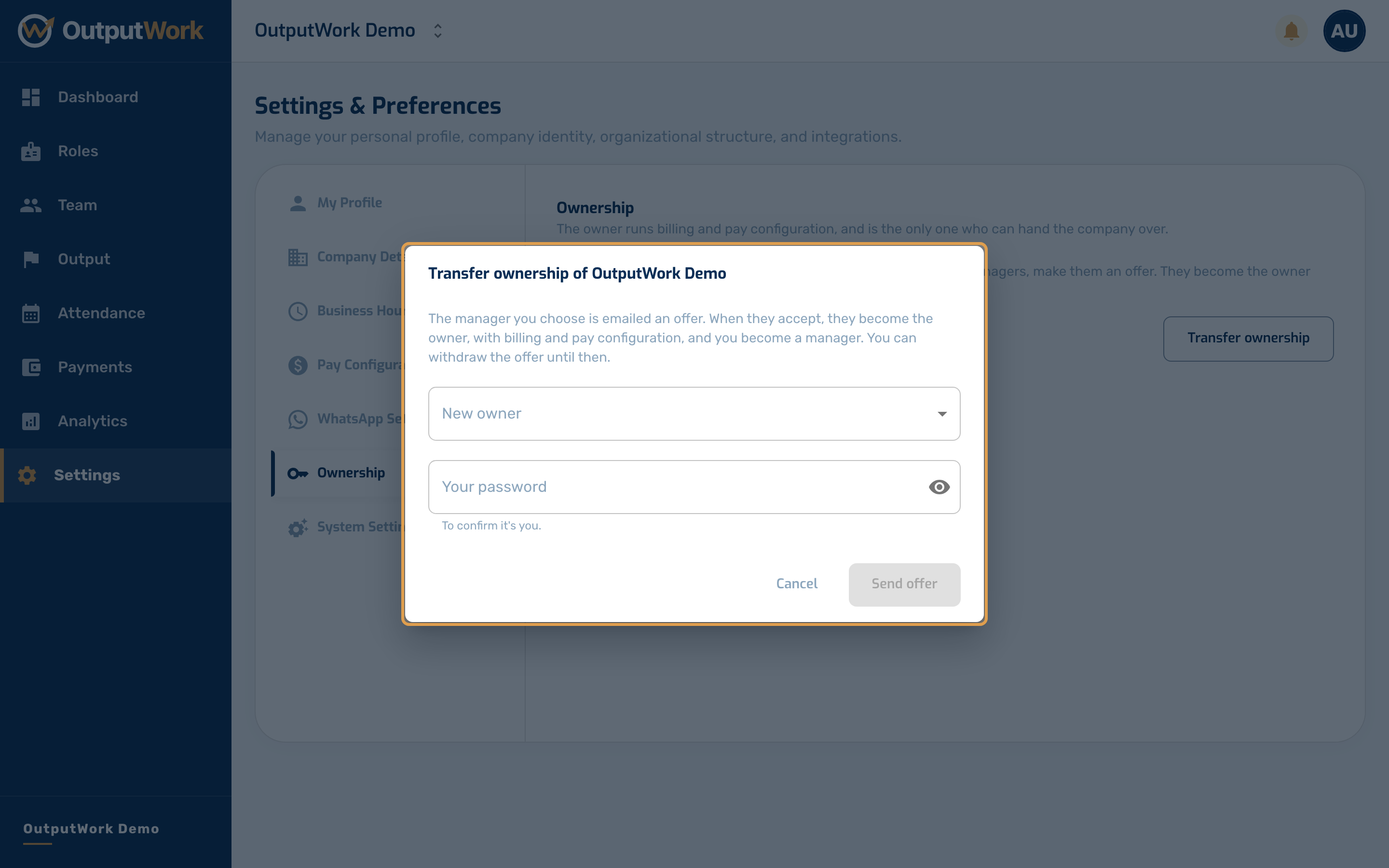
Step 2. Choose the New owner from your active managers, enter your password, and click Send offer. Only an active manager can receive it: to hand the company to someone else, make them a manager on Team first.
The manager gets an email. Nothing changes until they accept. Until then, Ownership shows who the offer is for and when it lapses (after 7 days), and Withdraw offer cancels it.
Step 3. The manager sees a banner on every page of the workspace: … wants to make you the owner. It opens Settings → Ownership, where Review and accept shows what changes and Become the owner makes it so. Decline turns the offer down. The owner gets an email either way.
Step 4. When they accept, the change is immediate: they become the owner and you become a manager. Billing & Plan, the subscription's emails, Pay Configuration, and approvals that come to the owner all go with it.
Roles don't change: you keep your Operational Role (CEO, say), and they keep theirs. Change them under Roles if you want to.
If either of you changes role before the offer is accepted, it is withdrawn. A company always has exactly one owner: nobody can be made owner by editing them, and the owner can't be removed or suspended.