Inviting Your Team
Add people to your organization and give them the right level of access.
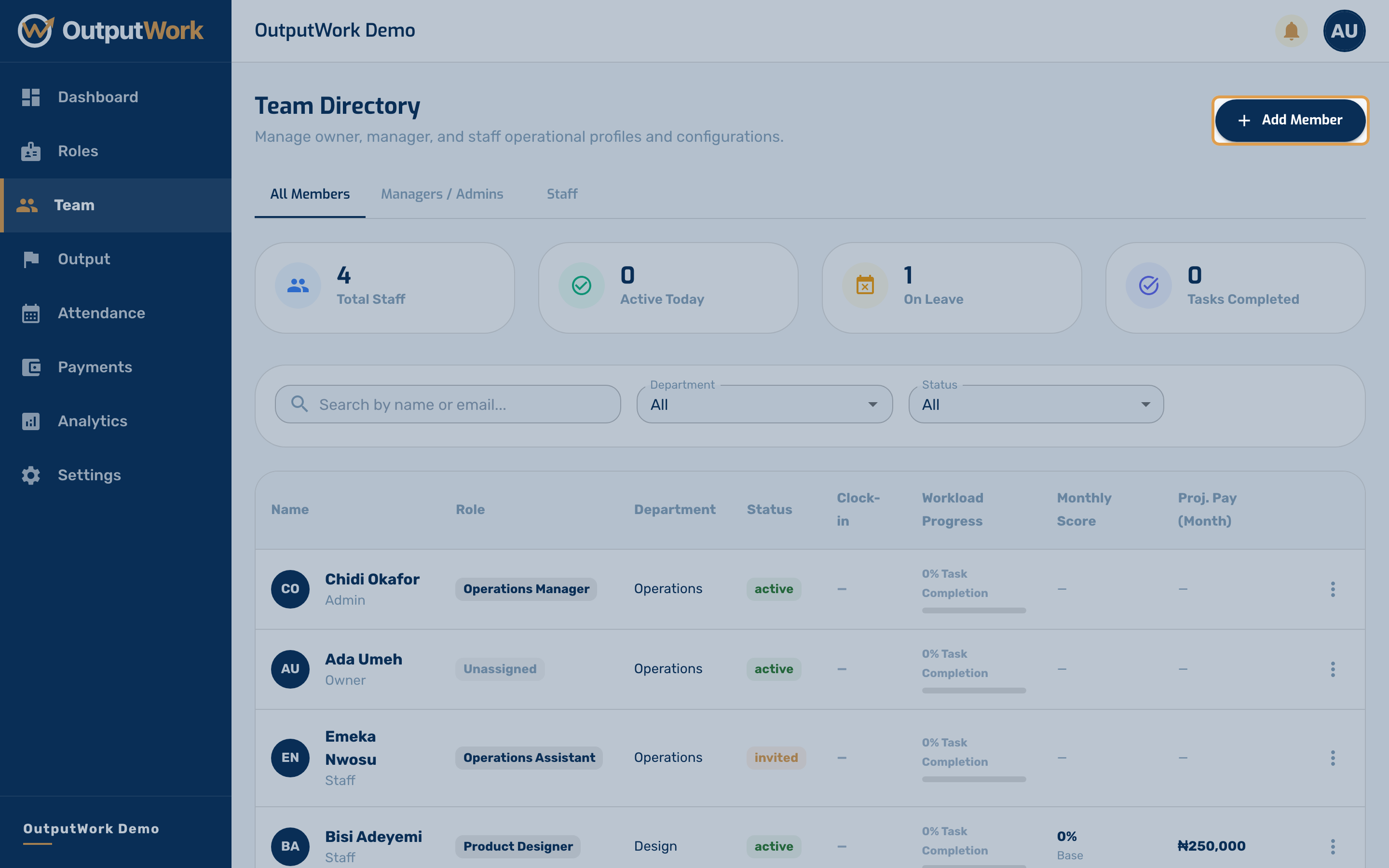
Step 1. Open Team from the sidebar. This is everyone in your organization. Click Add Member to invite someone new.
Each person takes one seat of your subscription. When all of them are in use, the Team page says so (All 10 of your seats are in use, say), and you can't invite anyone else until you add seats under Billing & Plan. On a fixed-size plan, you move to a larger plan instead.
Step 2. The Invite Team Member form opens.
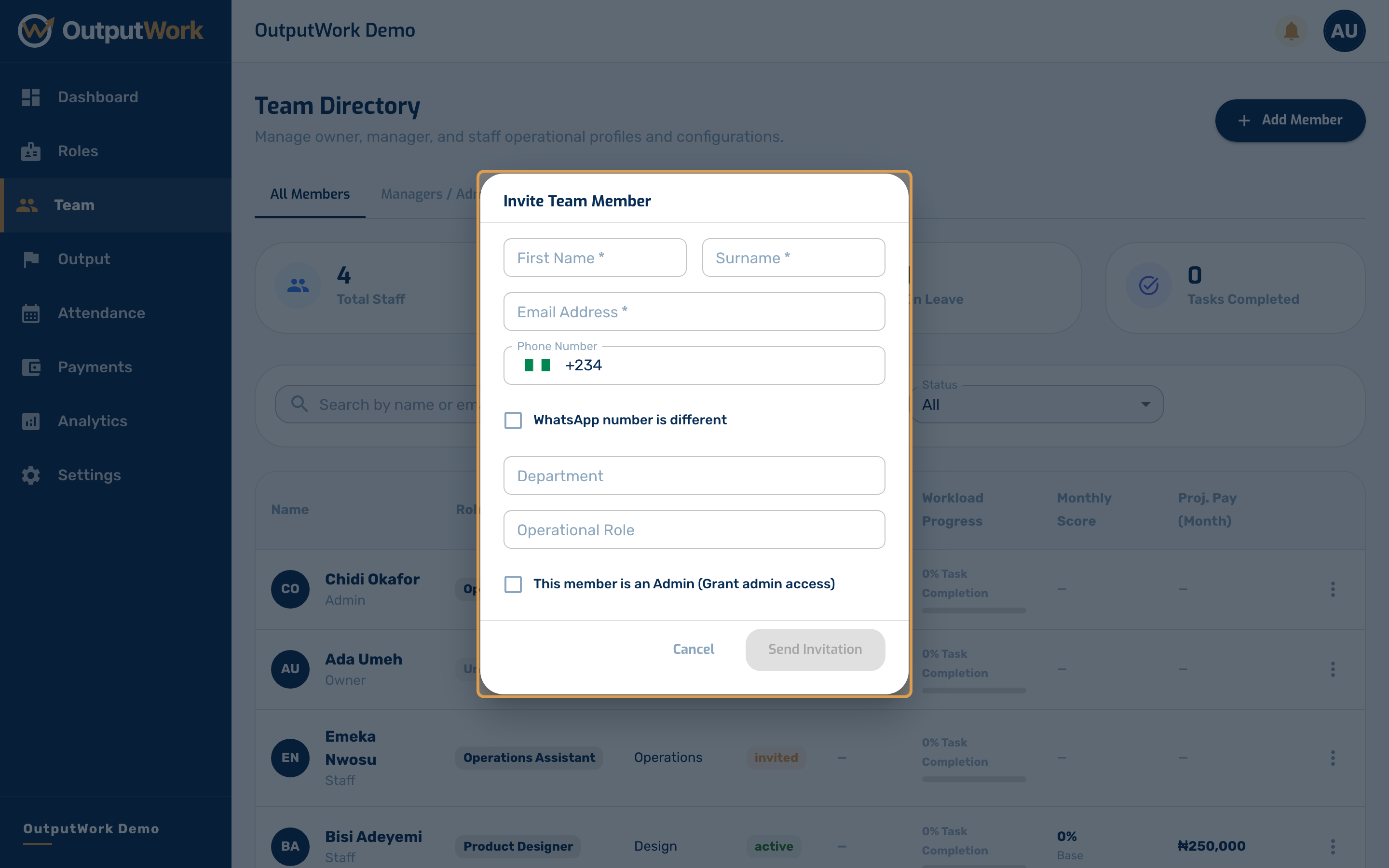
Step 3. Fill in their name and email address, then work down the rest of the form. Three fields do more than they look like they do:
- Operational Role is the important one. A role carries the task and goal templates you set up earlier, so choosing it here is what decides the work that appears on this person's dashboard from day one. If the role you want is not listed, create it under Roles first. Note that a lead role can only be held by one person — if it is already occupied, you will be asked to pick another.
- WhatsApp number is optional, and only needed if it differs from their phone number — tick WhatsApp number is different to enter one. If set, and your organization has WhatsApp turned on, OutputWork sends them a welcome message, and they can text commands such as TASKS, DONE or HELP to use OutputWork without opening the app.
- This member is an Admin decides which workspace they get. Left unticked they join as a team member and see only their own work. Ticked, they get the full admin workspace — Team, Output, Attendance, Payments and Analytics — the same as you, with one exception: only the organization owner can change Pay Configuration.
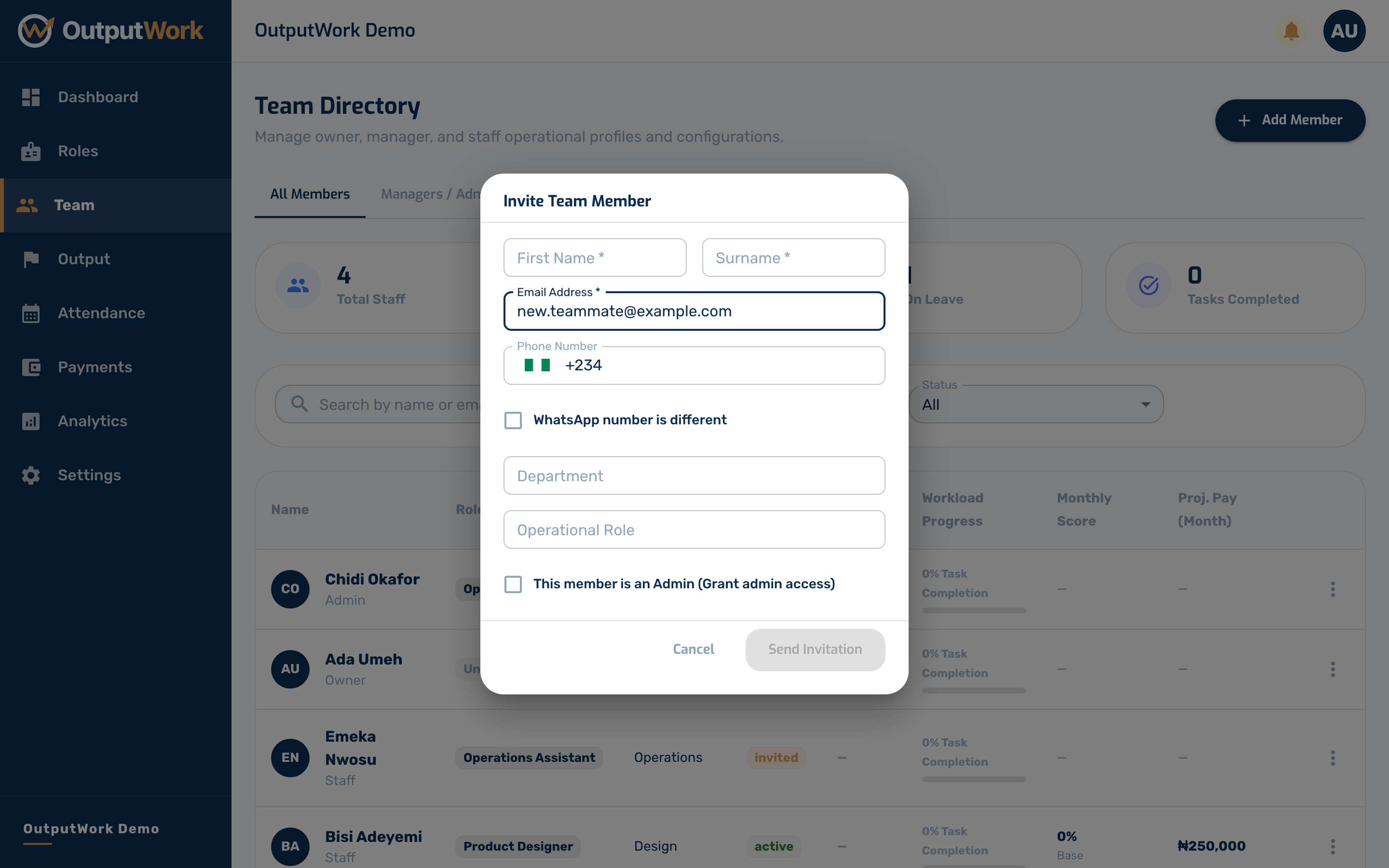
Step 4. Click Send Invitation. They will get an email with a link to set their own password. Until they use it, they appear in the team list as Invited.
If they already use OutputWork with another company, they don't get a second account. The email tells them you invited them, and they accept or decline from their Invitations (see Invitations from Another Company). You see them as Invited either way: OutputWork doesn't tell you whether someone works elsewhere, and they see nothing of your company until they accept. If they decline, they leave your team list and their seat is free again.
If they use OutputWork under a different email, the invitation says they can add your company to that account instead of setting up a new one (see Setting Your Password). You still see the address you invited.
Troubleshooting & Seat Limits
- "All of your seats are in use" (SEAT_LIMIT_REACHED): You cannot invite new members when active seats reach your plan limit. Go to Settings > Billing & Plan to add more seats or upgrade before sending new invitations.
- Duplicate Email Address: An invitation cannot be sent to an email that is already registered in the organization.
- Re-sending or Cancelling Invitations: Pending invitations can be resent or cancelled from the Team directory under the Invited status.