Setting Task and Goal Templates
Define the work a role is responsible for, once, and it appears for everyone in that role.
:::info Enterprise plan
Goals are part of the Enterprise plan. On the SME plans this section is not shown, and your Output page has Tasks and History tabs only.
:::
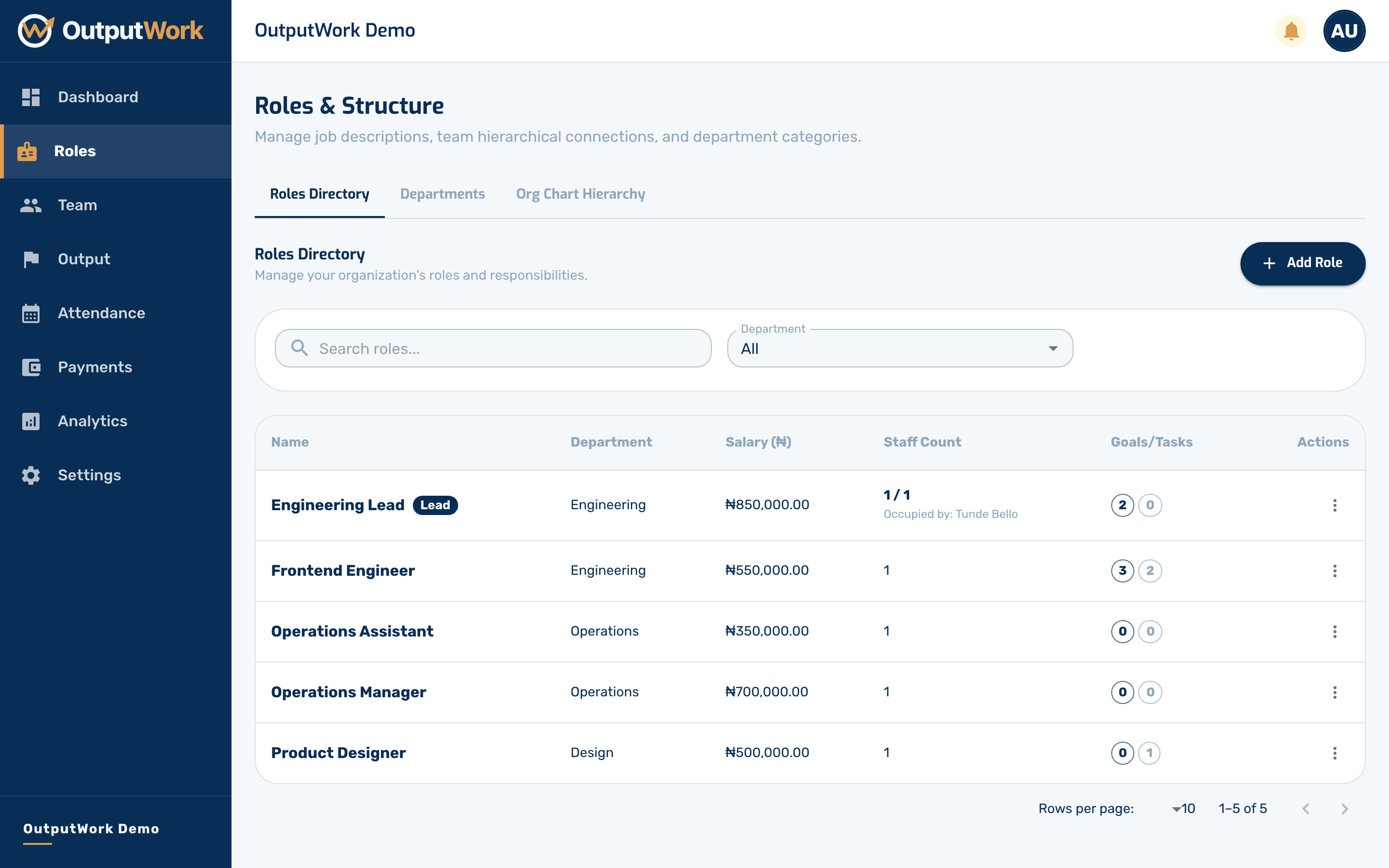
Step 1. Templates hang off roles. Open Roles, then open the role you want to set up by clicking its row in the Roles Directory.
Step 2. The role's detail page has tabs for Overview, Goal Templates, and Task Templates. A task is a concrete deliverable to complete; a goal is a strategic target to hit.
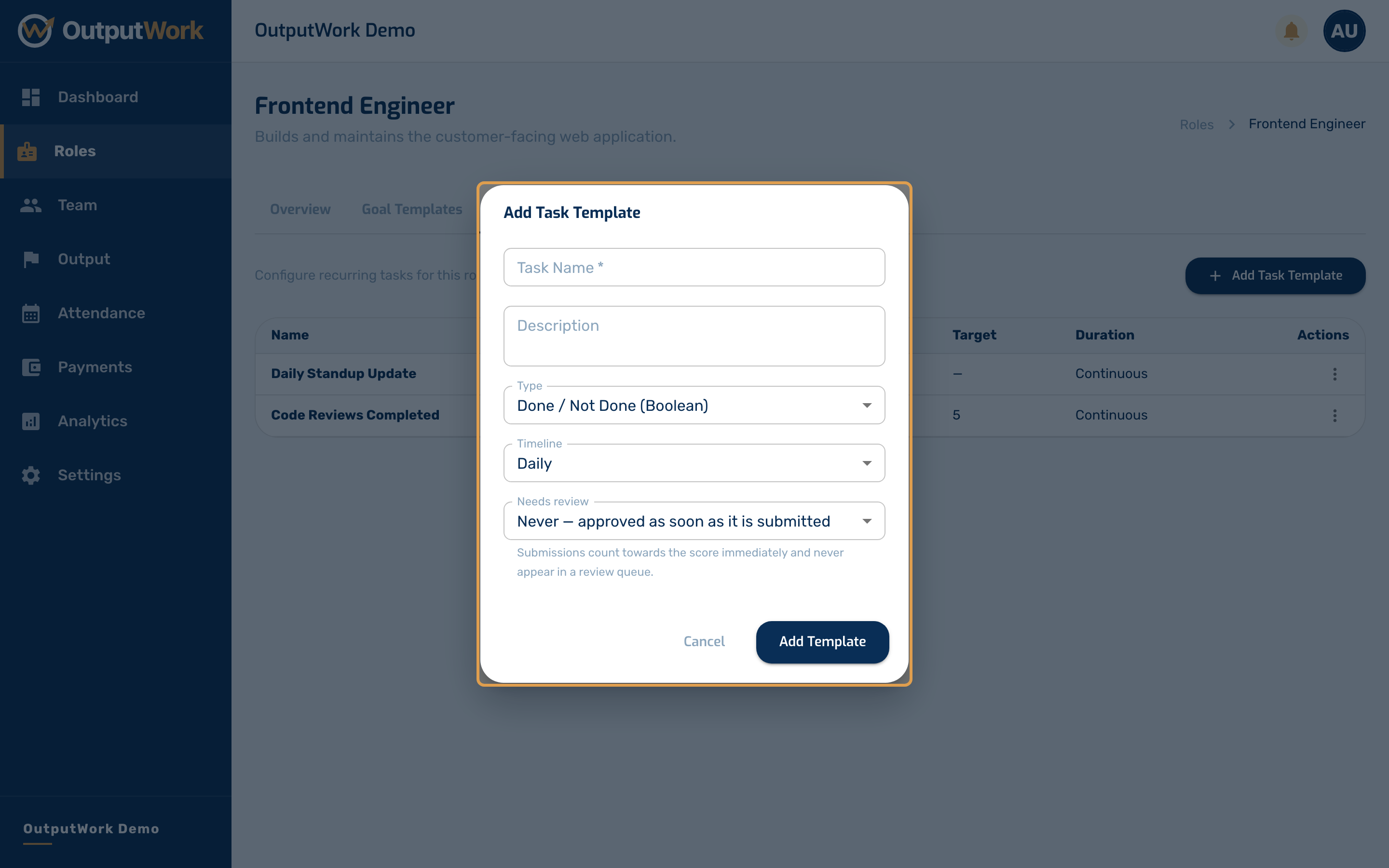
Step 3. On Task Templates, click Add Task Template to configure a standard deliverable for this role:
-
Task Name: Clear, descriptive title for the task
-
Description: Detailed guidelines, quality standards, or deliverable criteria
-
Type:
- Done / Not Done (Boolean): Verified completion, awarding 100% score upon approval
- Quantity Target: Requires entering a target number (e.g. 10 calls, 5 reviews), capped at 200% achievement
-
Timeline: Recurrence schedule (Daily, Weekly, or Monthly)
-
Needs review: whether someone checks the work before it counts:
- Always — a manager approves every submission
- Never — approved as soon as it is submitted
- Only if the member asks for review: they choose when they submit
New Done/Not Done tasks start on Never, and Quantity tasks on Always. Change it for any task you want checked. Click Add Template to save. Goals don't have this setting: a goal is always reviewed.
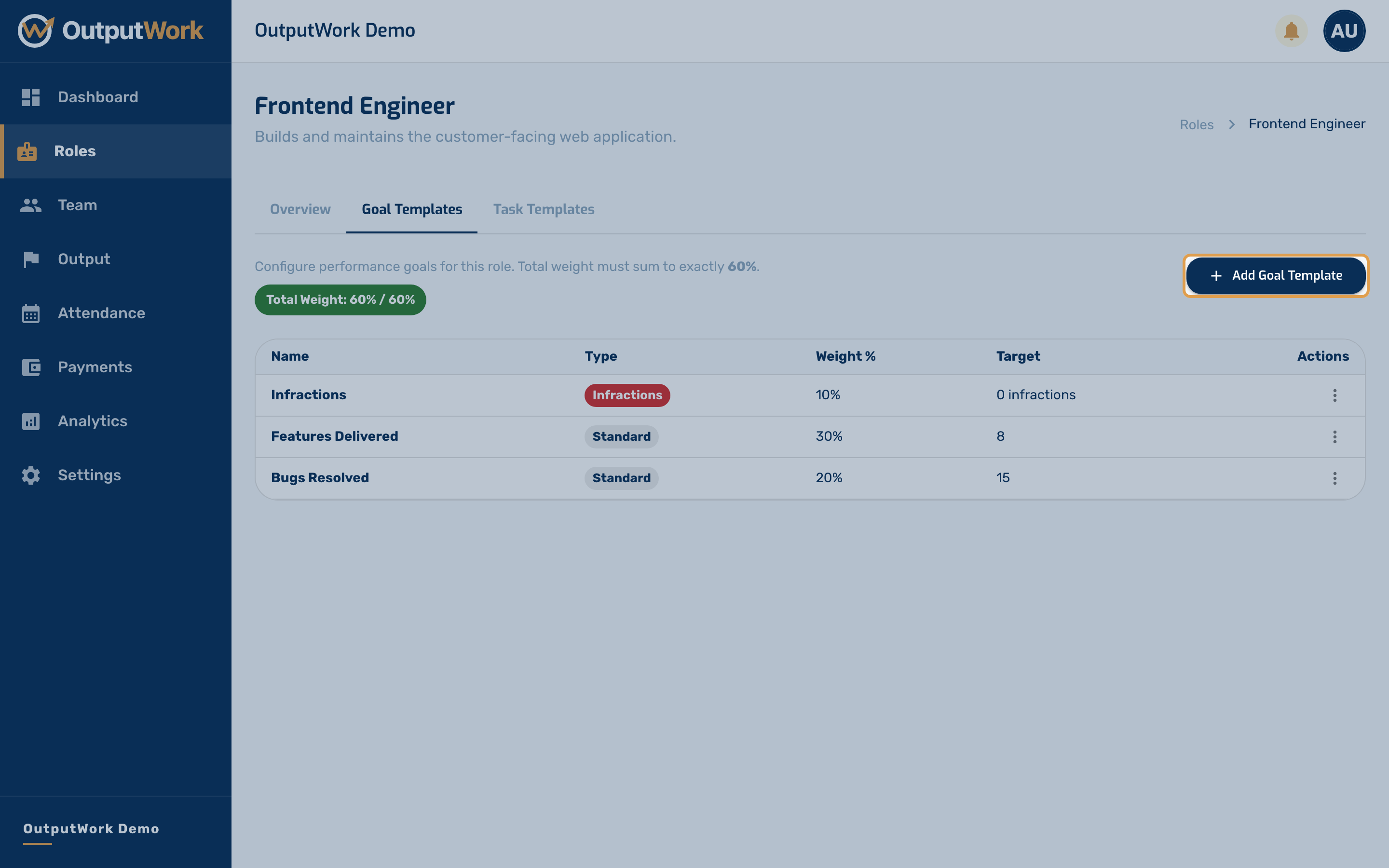
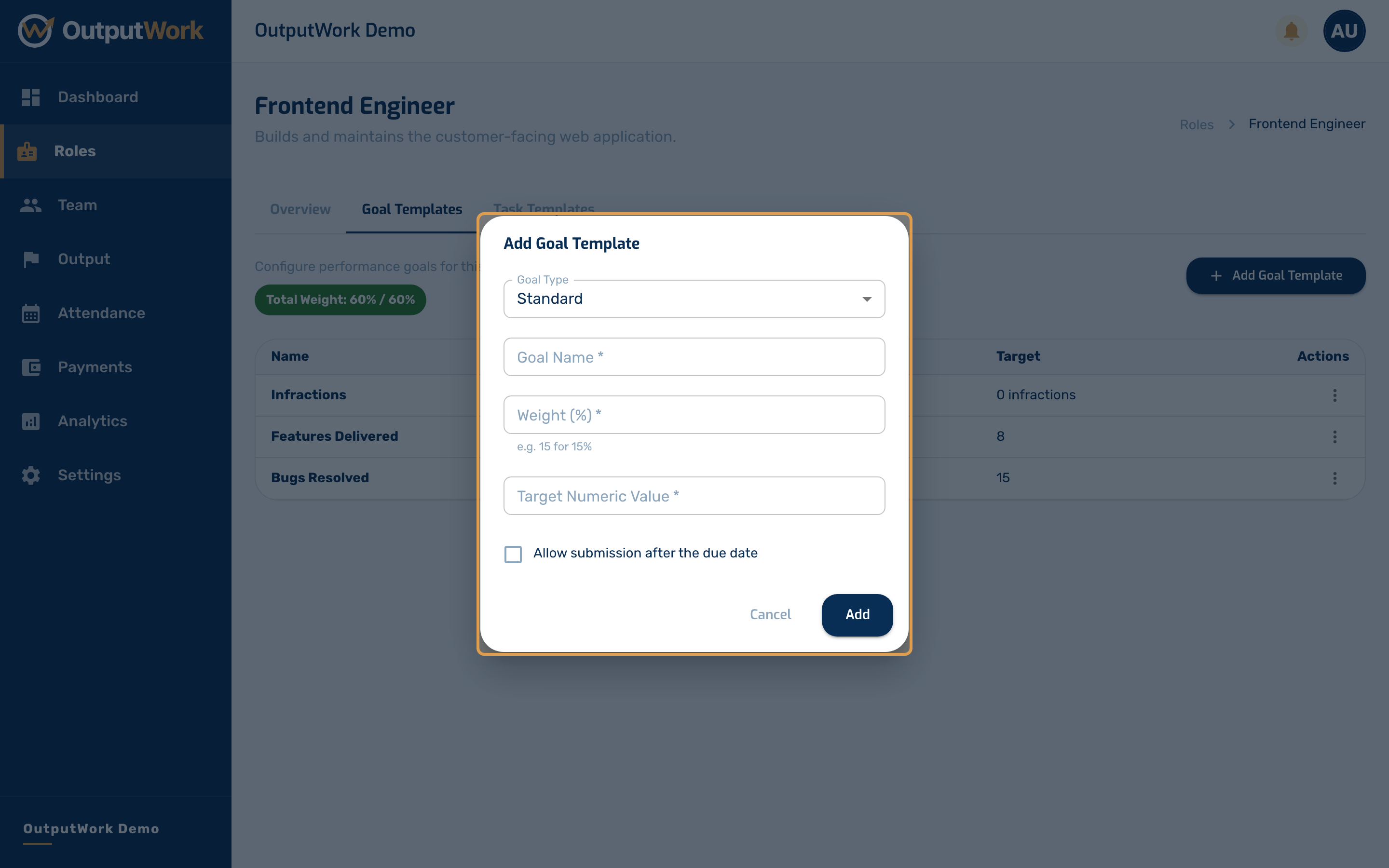
Step 4. Switch to the Goal Templates tab to inspect strategic targets. Click Add Goal Template to define a new performance objective.
Step 5. In the Add Goal Template modal, define role objectives:
- Goal Type:
- Standard: Numeric target to reach (e.g. revenue, quota, or output targets)
- Average Team Performance (ATP): For Lead roles, automatically tracks the aggregate average score of child roles (fixed target of 100%)
- Infractions: Deductive goal starting at 0 infractions (0 infractions awards full weight; 1 awards half; more than 1 awards 0%)
- Goal Name: Descriptive objective title
- Weight (%): Percentage contribution toward the role's score. Total goal weights cannot exceed 60% (the remaining 40% comes from task deliverables)
- Target Numeric Value: Target quantity required to reach 100% Click Add Template to save.
Troubleshooting & Validation Rules
- "Target value must be more than 0.1" (or "must be at least 1"): For Standard goals, the Target Numeric Value represents the quota units your team member must hit (such as 10 customer calls, 5 reviews, or revenue amounts). Enter a positive number. For Infractions, the target is automatically 0, and for Average Team Performance (ATP), it is automatically 1.0 (100%).
- "Total weight cannot exceed 60%": In OutputWork on Enterprise plans, goal templates contribute a maximum of 60% towards the total role performance score. The remaining 40% is reserved for concrete task deliverables.
- "Weight must be greater than 0%": Each goal must carry a positive weight percentage between 1% and 60%.
- "Grace period must be between 1 and 14 days": If you enable late submissions for a goal, the grace period days must be set between 1 and 14 days after the due date.
- Goals Not Visible: Goal templates and strategic OKRs are exclusive to the Enterprise plan. On SME plans, the Output workspace focuses exclusively on Tasks and Attendance history.