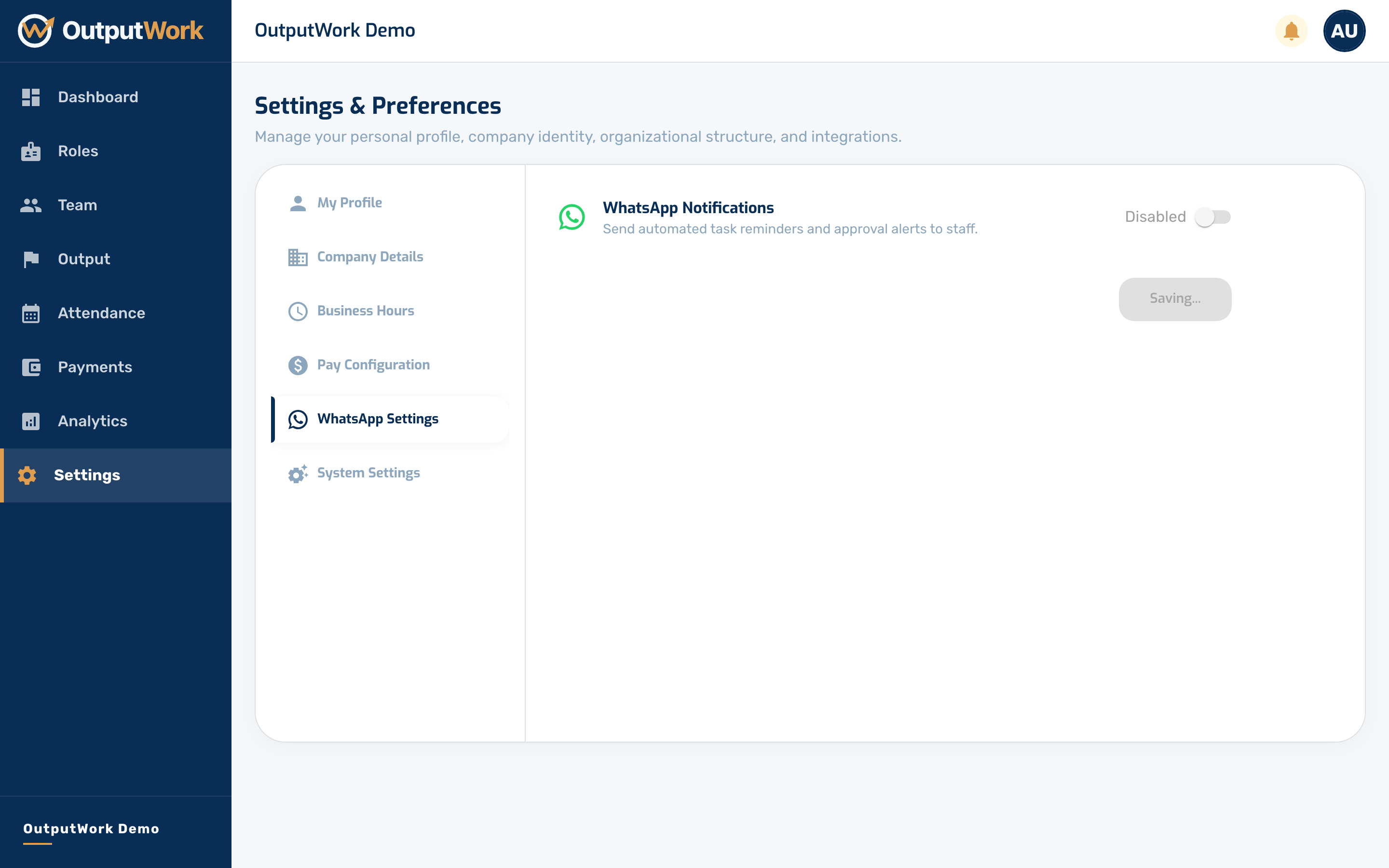
WhatsApp for Your Team
Turn on WhatsApp so your team can clock in, see their tasks and submit work by text.
Step 1. Open Settings and select WhatsApp Settings.
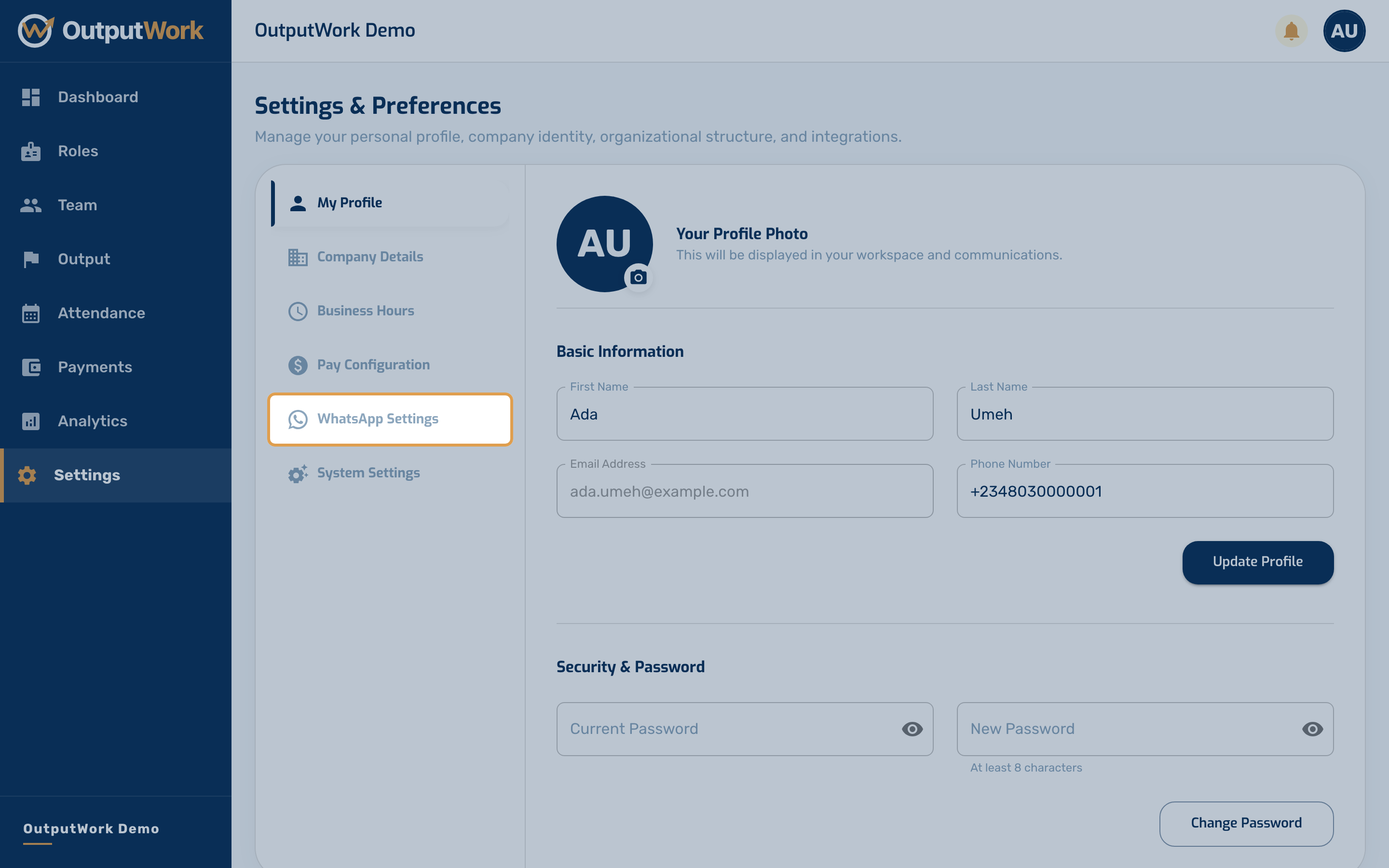
Step 2. Turn WhatsApp Notifications on. The System WhatsApp Number then appears below it: the number OutputWork's messages come from, and the one your team texts. Use the copy button to share it.
Each team member needs the right number in their profile: their Phone Number, or a separate WhatsApp number, which you can set when you invite them. Messages from a number OutputWork doesn't know are answered with a request to ask their manager to add it.
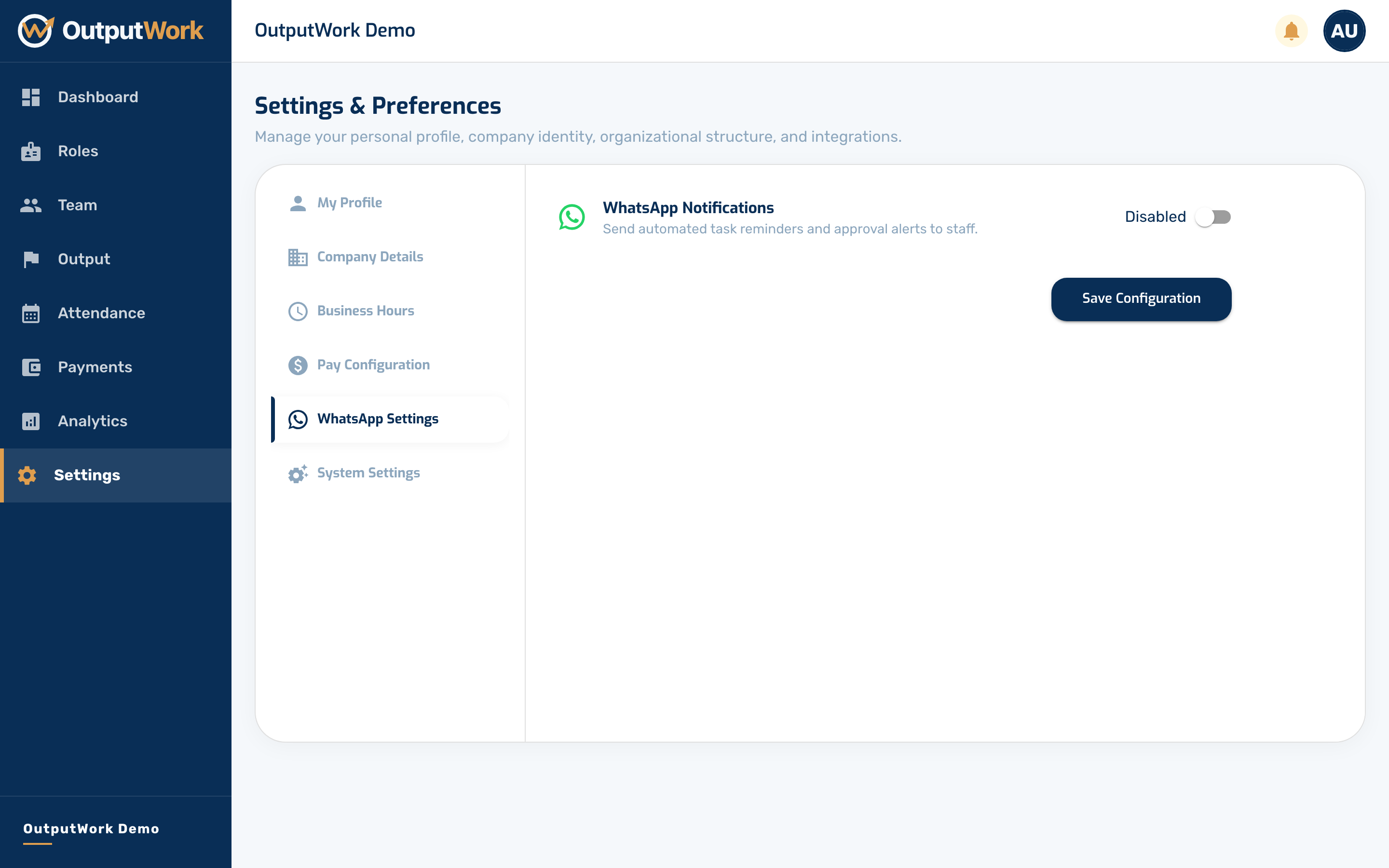
Step 3. Click Save Configuration. Your team can now text the number to clock in and out, see and submit their tasks, and check their score and pay. Using OutputWork on WhatsApp, in the team's part of this guide, lists the commands.