Running Payroll
Generate the month's payroll and move it through to paid.
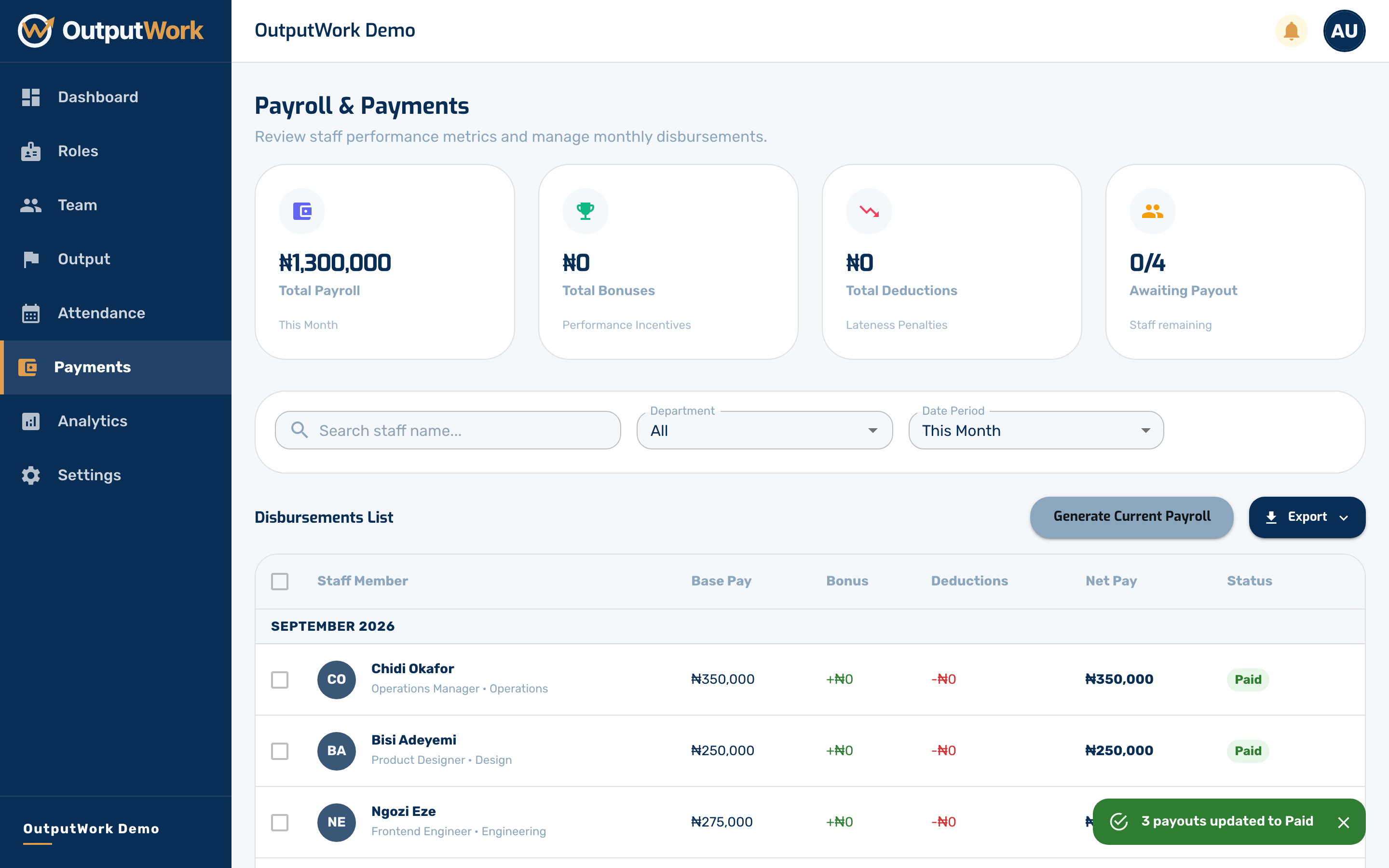
Step 1. Payroll & Payments lists what each person is owed for the period, built from their role's salary and — if you have linked pay to performance — their score.
Deductions are lateness: each late day times the amount you set under Deduct for Lateness in Settings → Pay Configuration. If you have not turned it on, deductions are zero.
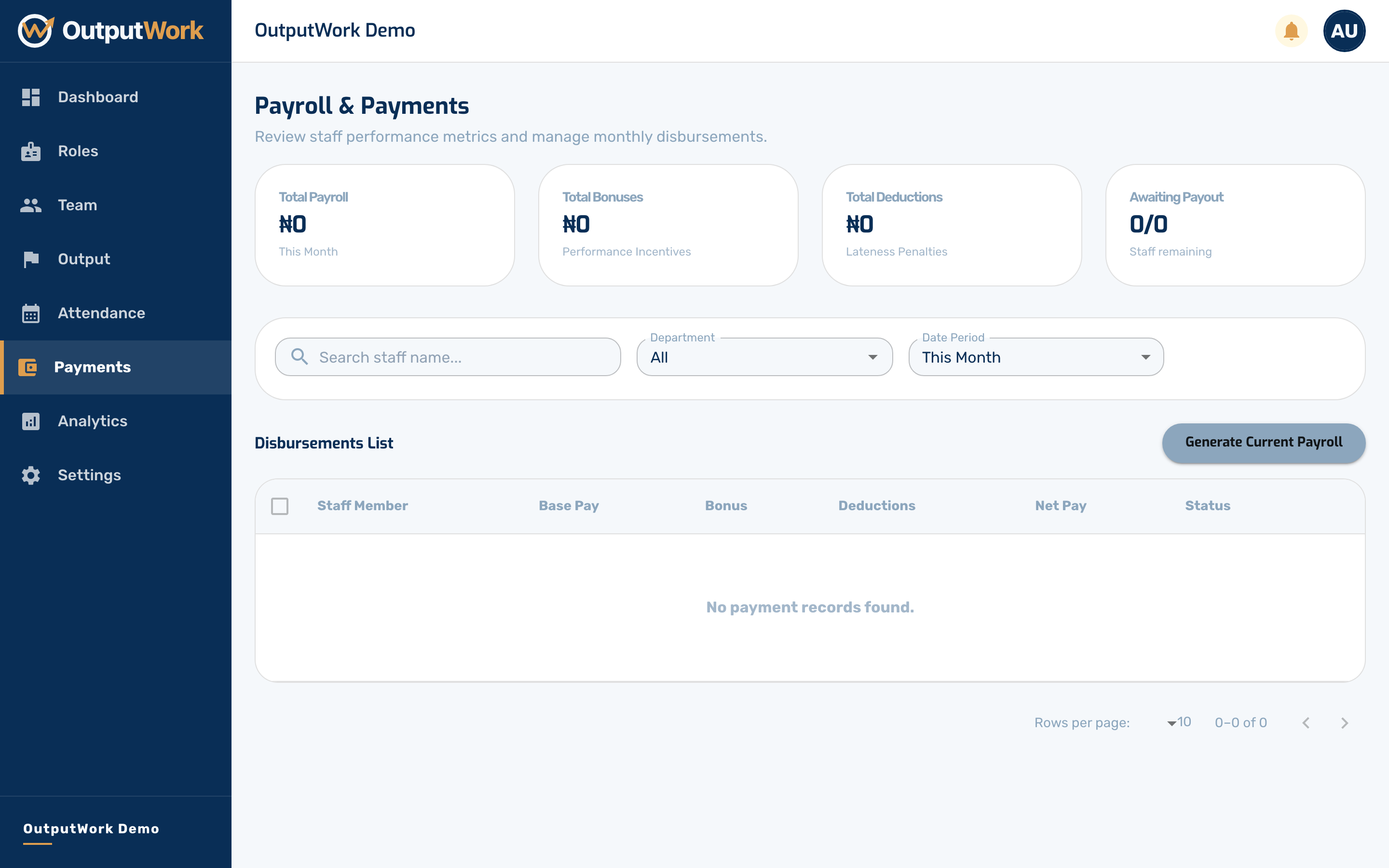
Step 2. Click Generate Current Payroll to build this period's figures for every eligible person in one go.
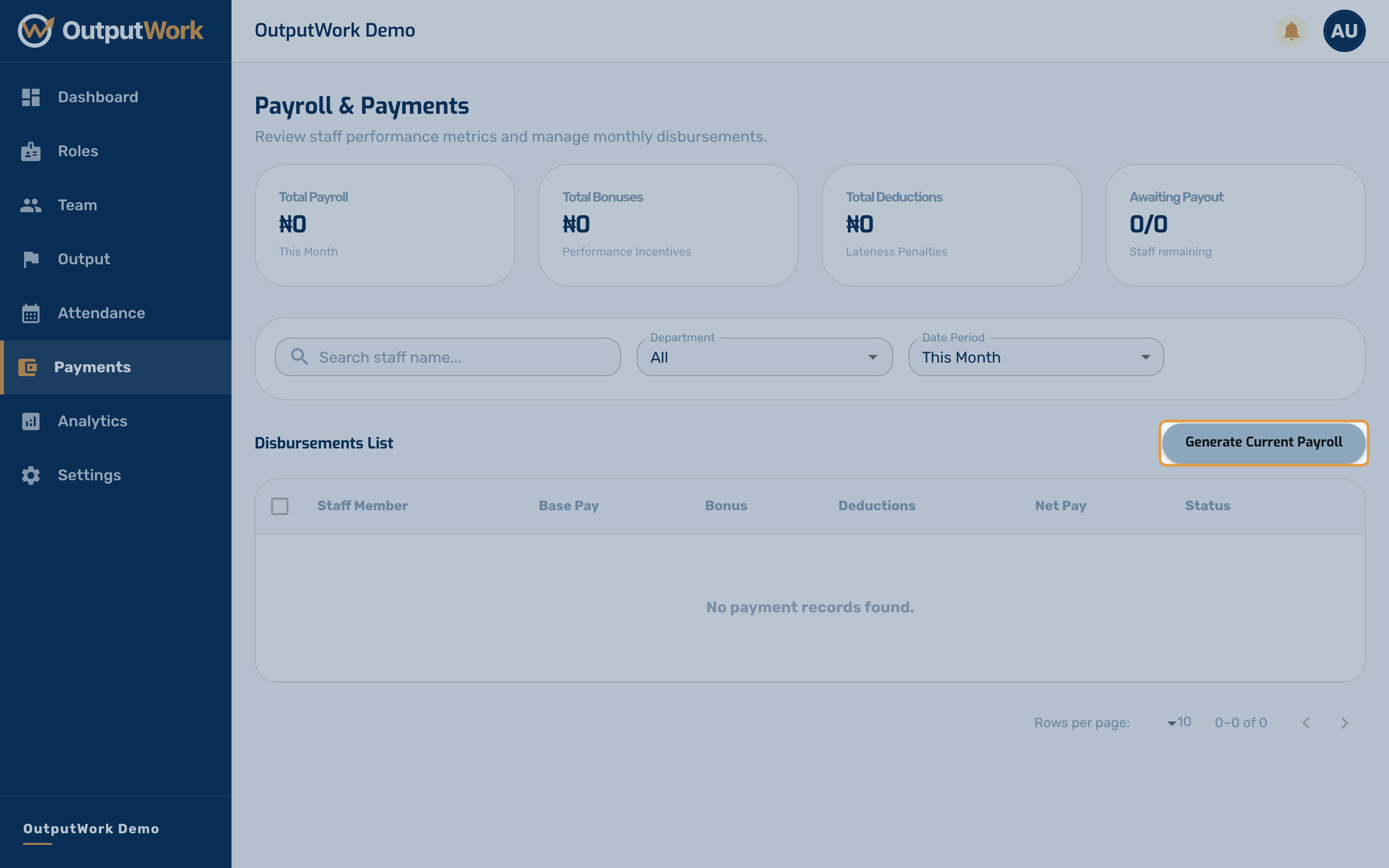
Step 3. Confirm, and a row appears for each person marked Pending.
Step 4. Tick the rows you are paying — the header checkbox selects them all. The toolbar changes to show what you can do with the selection, and the total.
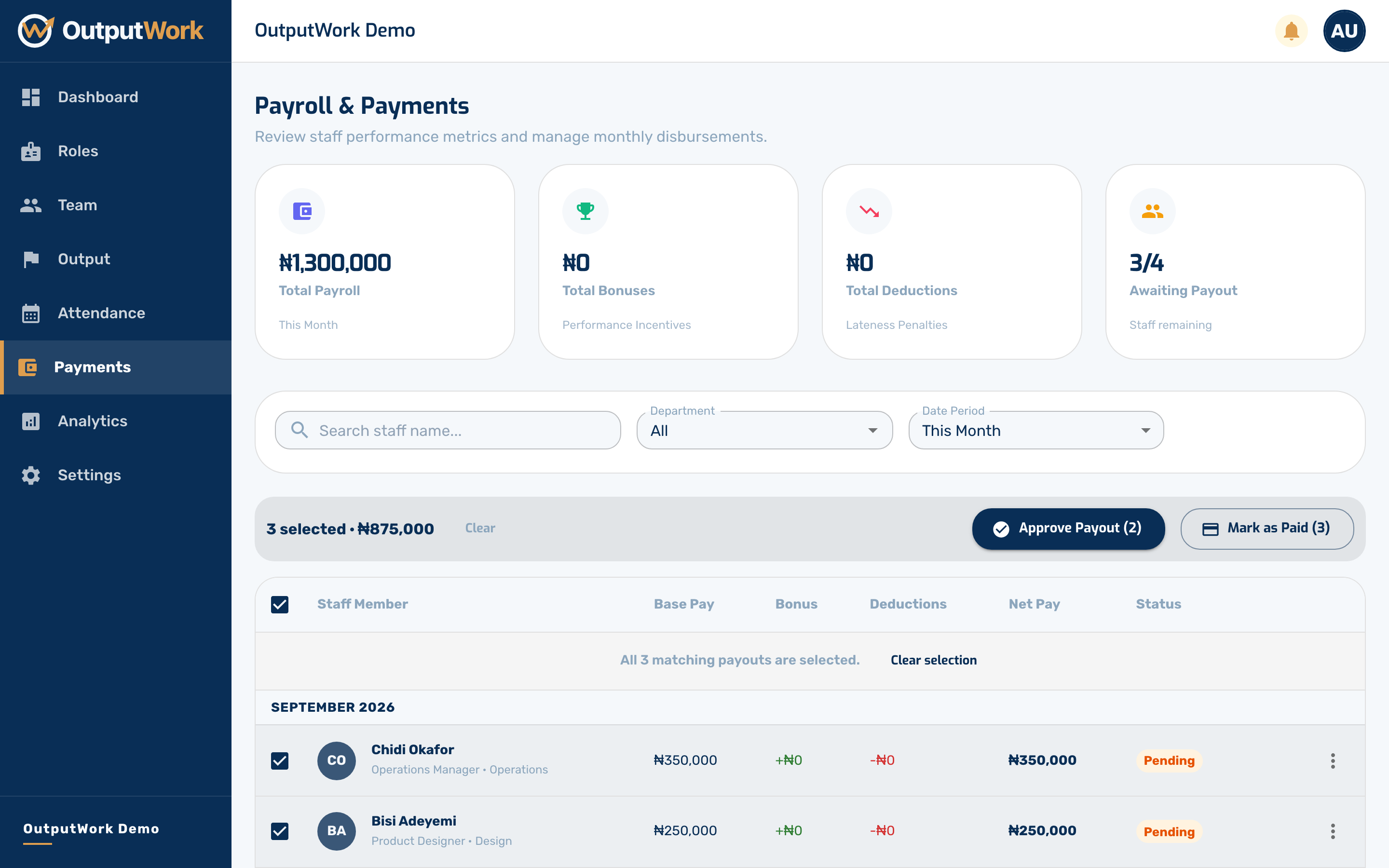
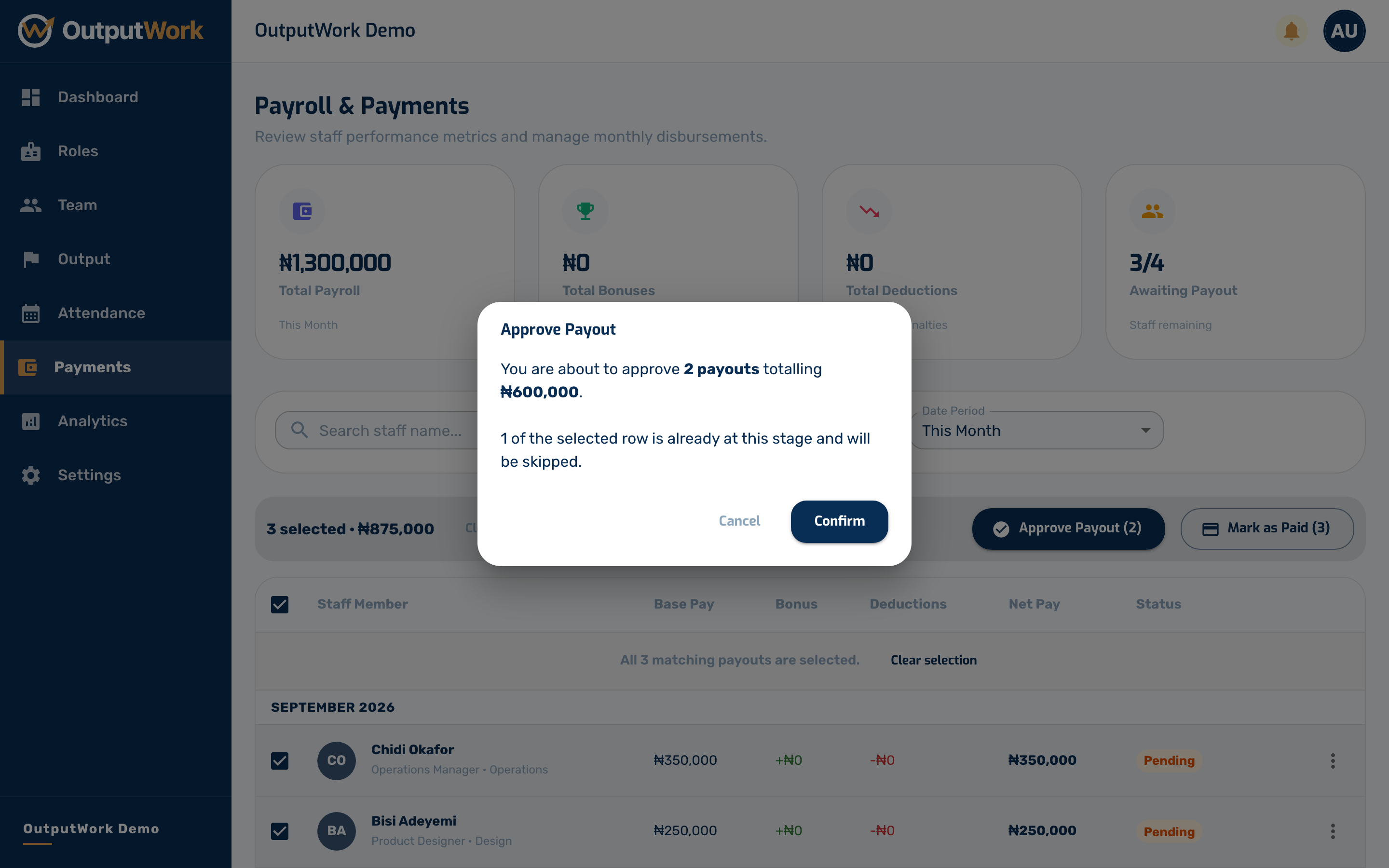
Step 5. Approve Payout asks you to confirm, and tells you how many rows and how much money. Anything already past this stage is skipped rather than double-counted.
Step 6. Confirming moves them to Ready to Pay — the amounts are agreed, but nothing has left your account yet.
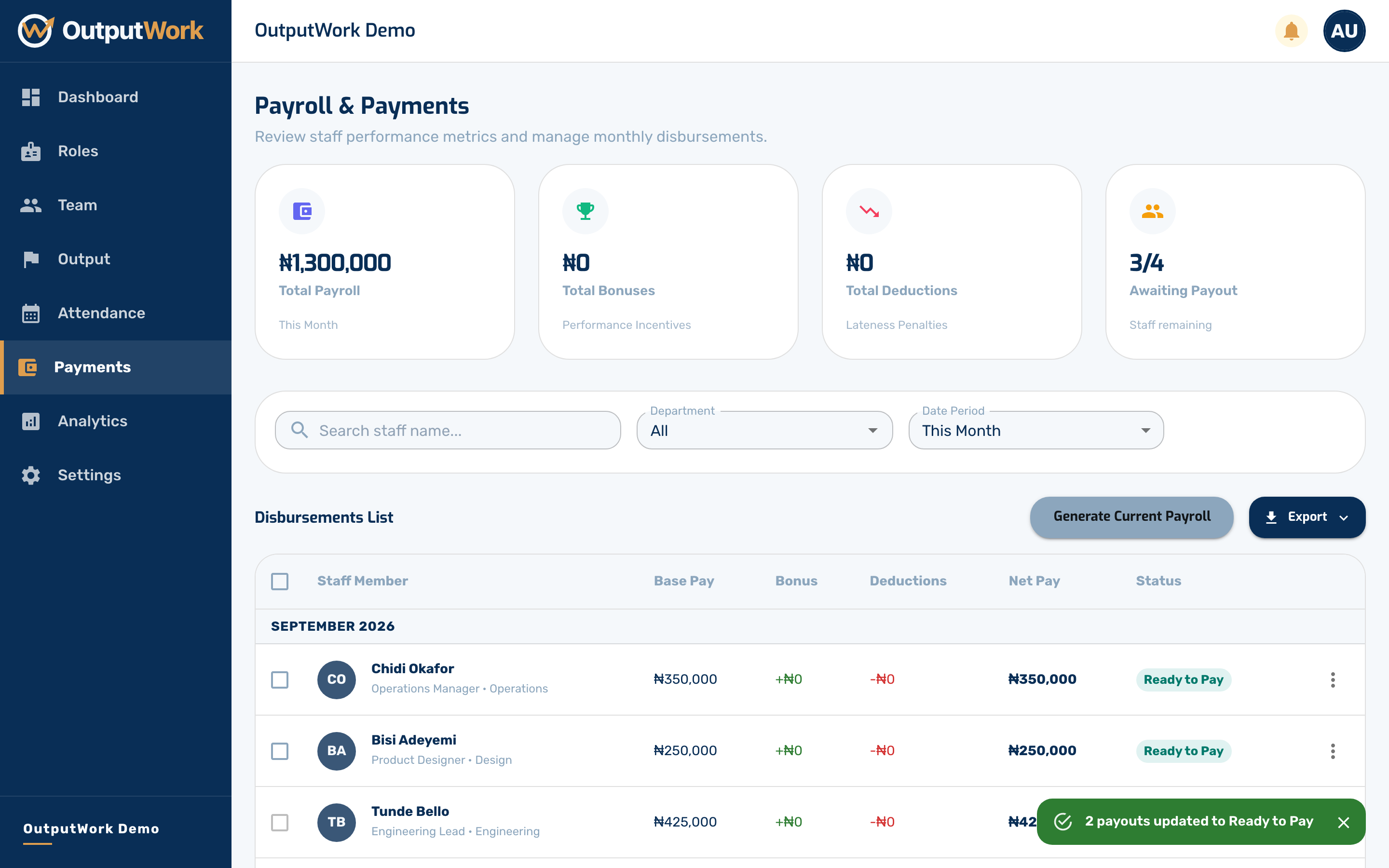
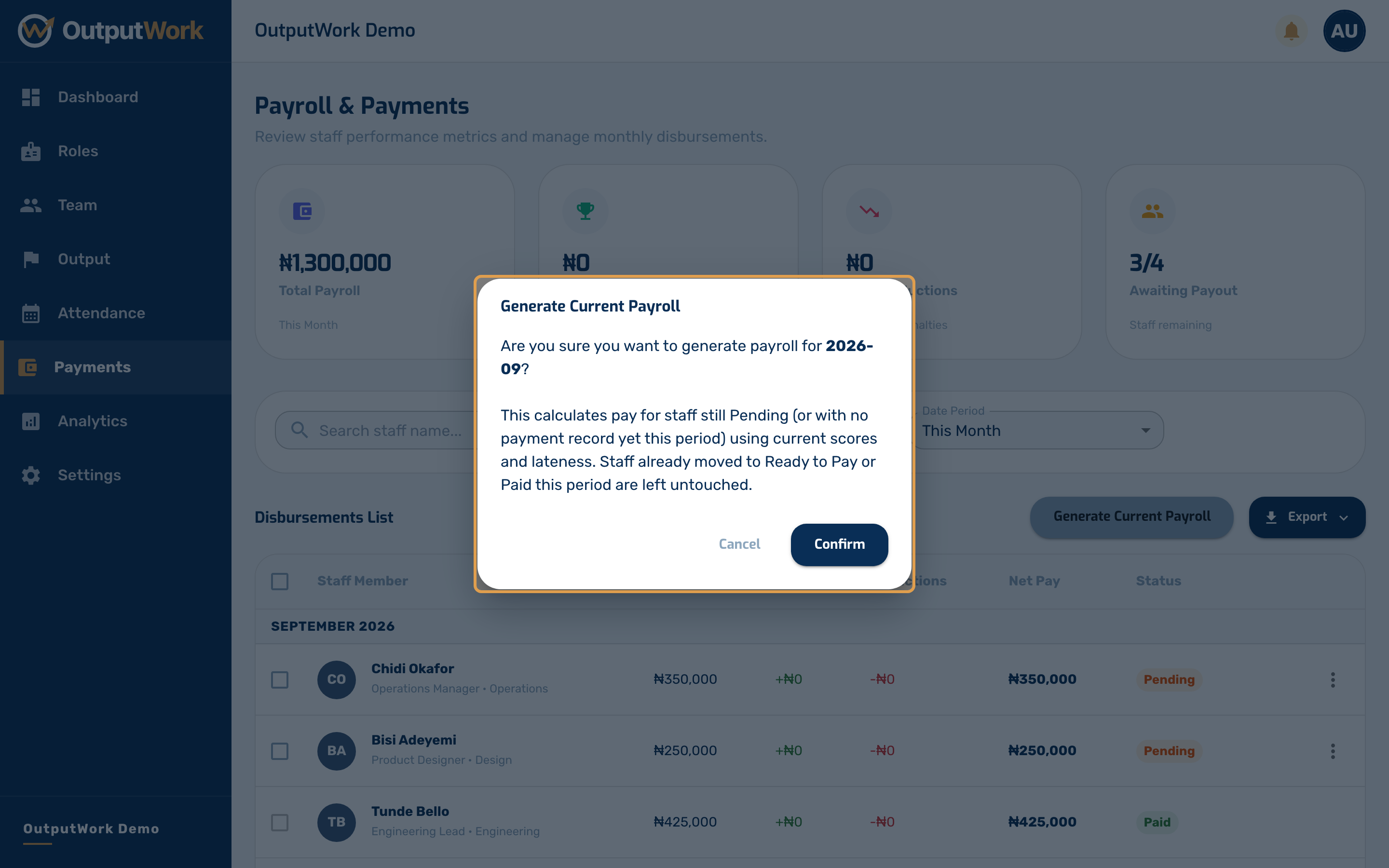
Step 7. Once you have actually sent the money, Mark as Paid and confirm. The chip turns green, and each person sees the payment in their own My Pay.