Clocking In and Out
Record your attendance for the day.
Step 1. Click Clock In at the start of your day. If you clock in after your organization's start time plus its grace period, the day is recorded as late.
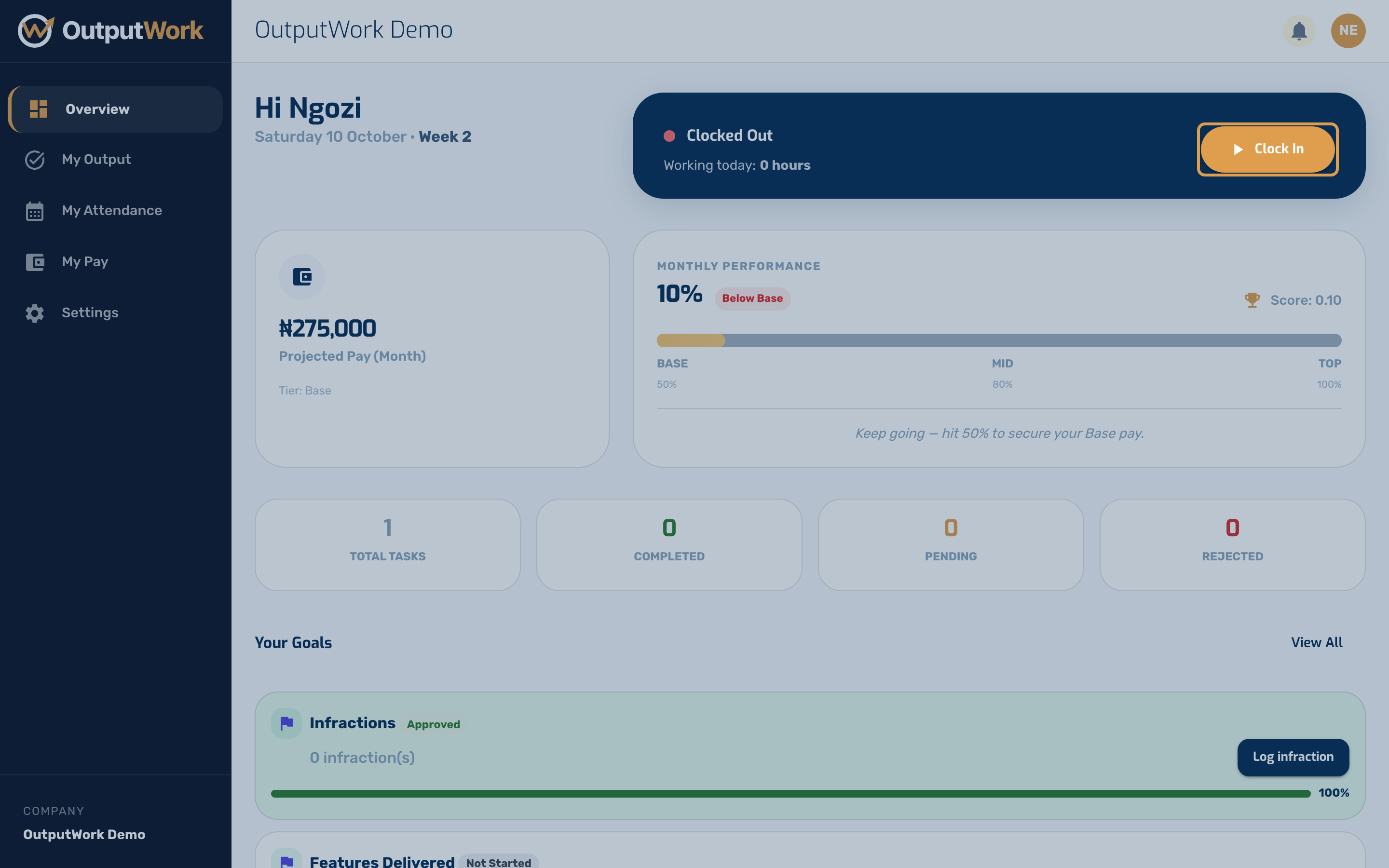
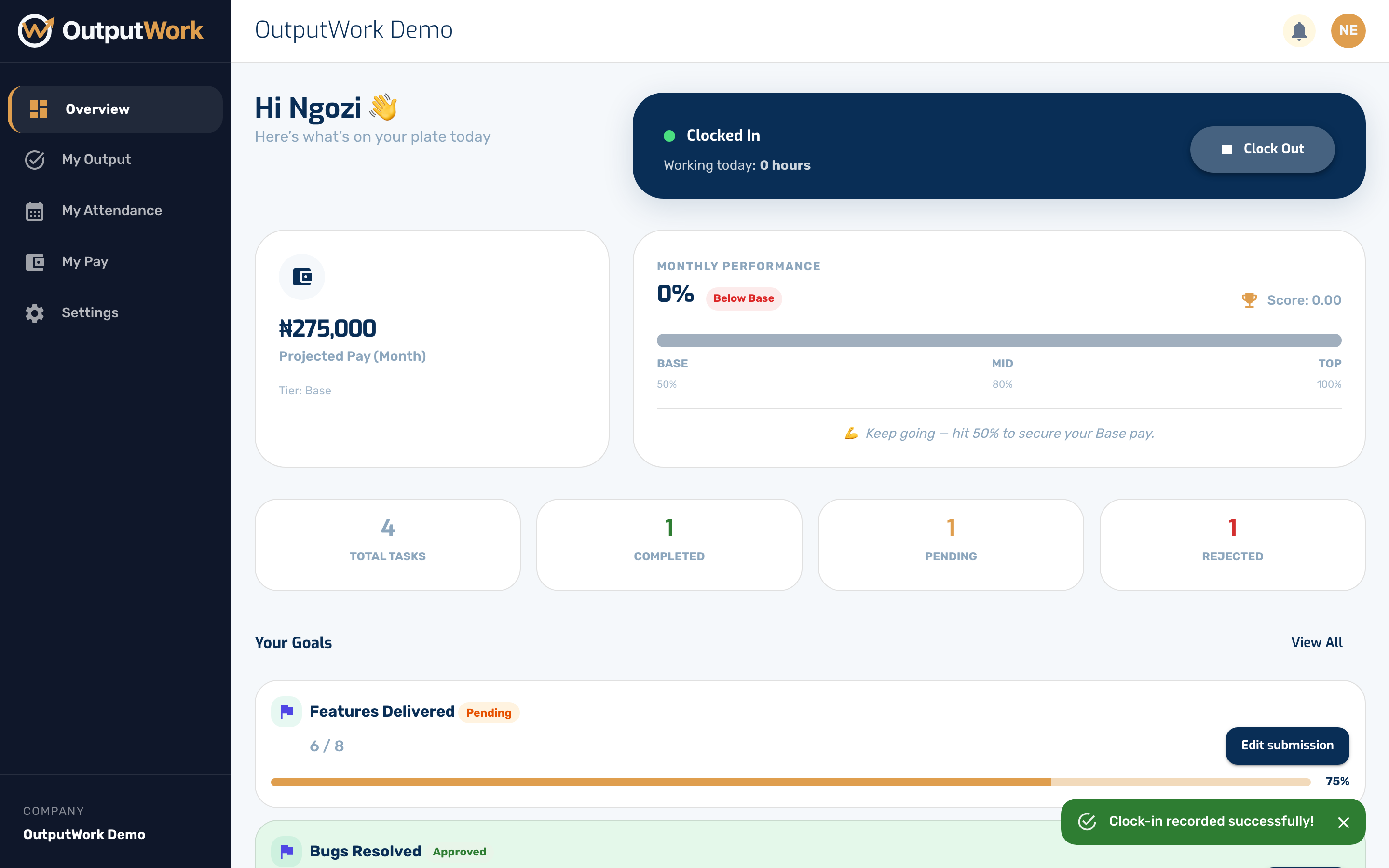
Step 2. Your status switches to Clocked In and the hours counter starts. At the end of the day the same button reads Clock Out.
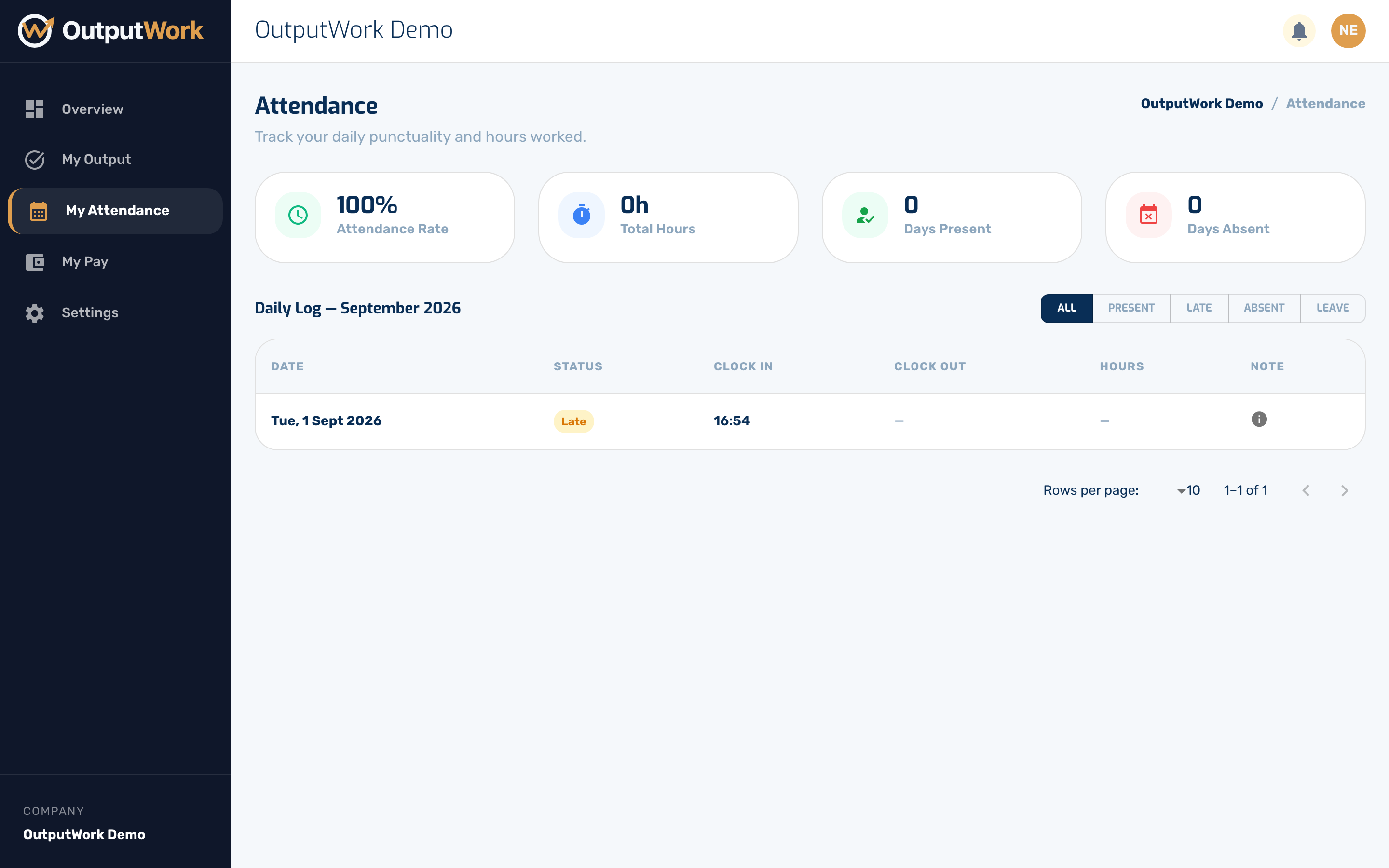
Step 3. My Attendance shows your history — the days you worked, the hours, and whether you were on time.
Troubleshooting Clock-In Issues
- Already Clocked In: Clock-in is idempotent. If you tap Clock In when already clocked in (or tap multiple times on mobile), OutputWork maintains your active session seamlessly without causing duplicate entries or errors.
- "No active clock-in session found to stop": You cannot clock out if you do not have an open clock-in session for the day. Click Clock In first to start your session.
- Marked as Late: Clocking in after your organization's designated work start time plus the configured grace period automatically records the day as late in My Attendance. Work hours and grace periods are configured by administrators under Settings > Business Hours.
- Server-Side Timestamps: Clock-in and clock-out times are recorded directly by the server, ensuring your attendance records remain accurate even if your phone or computer clock is out of sync.