Submitting Your Work
Send a task or goal for review, and what happens after.
Step 1. My Output is everything you are being measured on. Tasks and Goals cover the current period; History holds previous months.
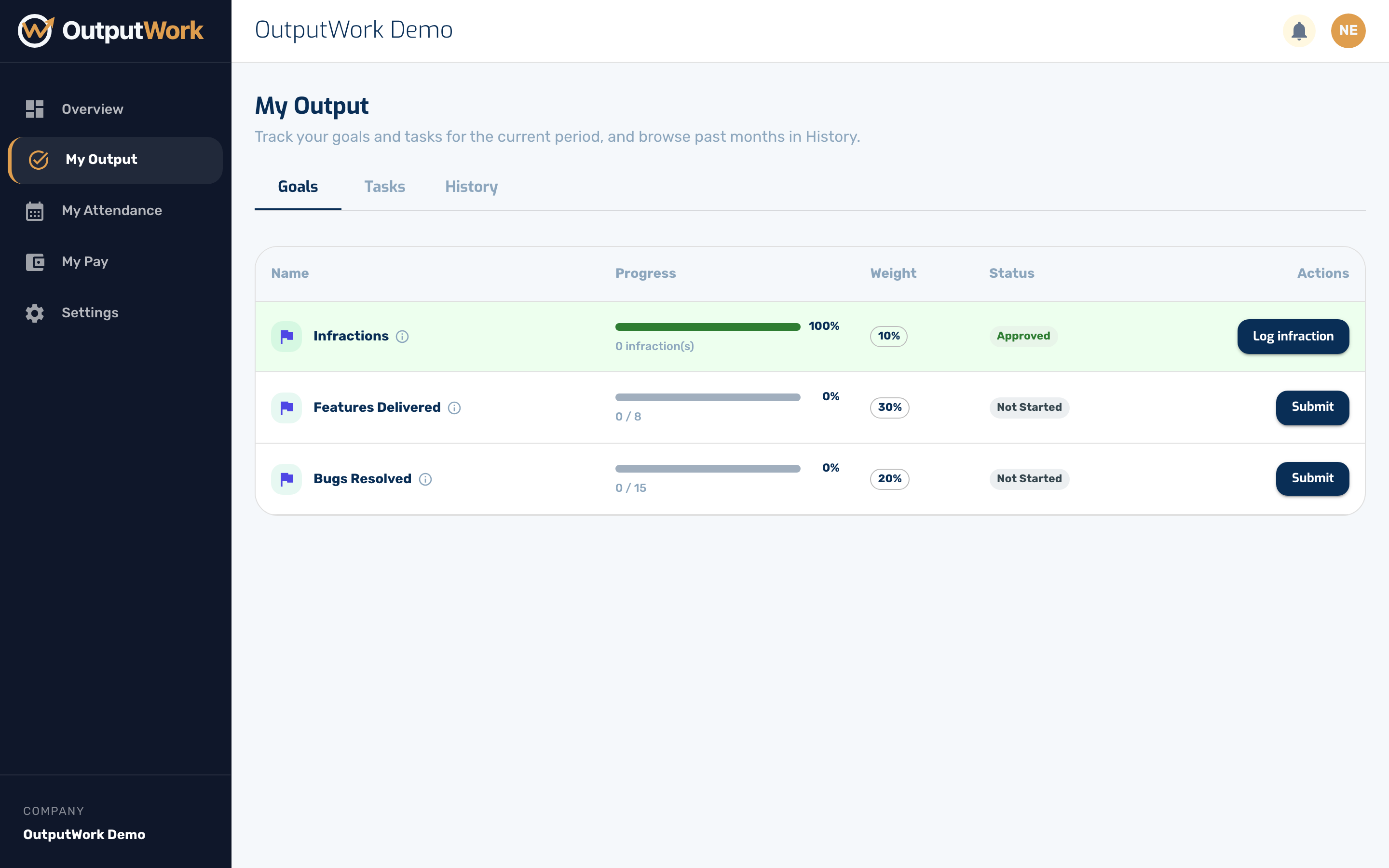
Step 2. Open the Tasks tab. When you have finished something, click Submit on its row. For a quantity task you enter the total you reached; for a Done/Not Done task you just confirm it.
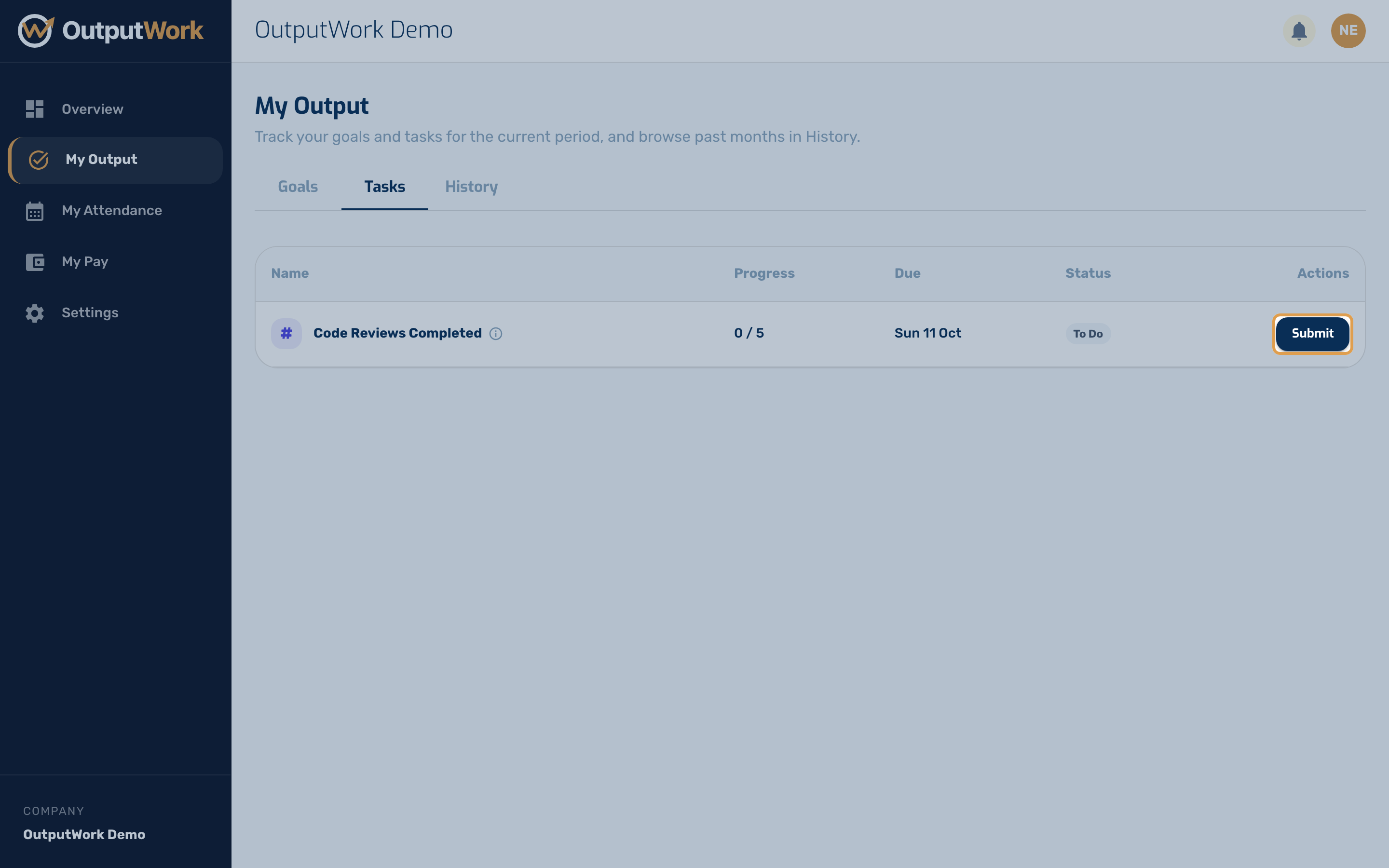
Step 3. Add an optional note, then submit. What happens next depends on how the task was set up:
- some tasks are approved as soon as you submit them;
- others go to pending until a reviewer approves or rejects them;
- if you see Send for review, it's your choice: tick it to have someone check the work, or leave it and the task is approved straight away.
Goals always go to a reviewer.
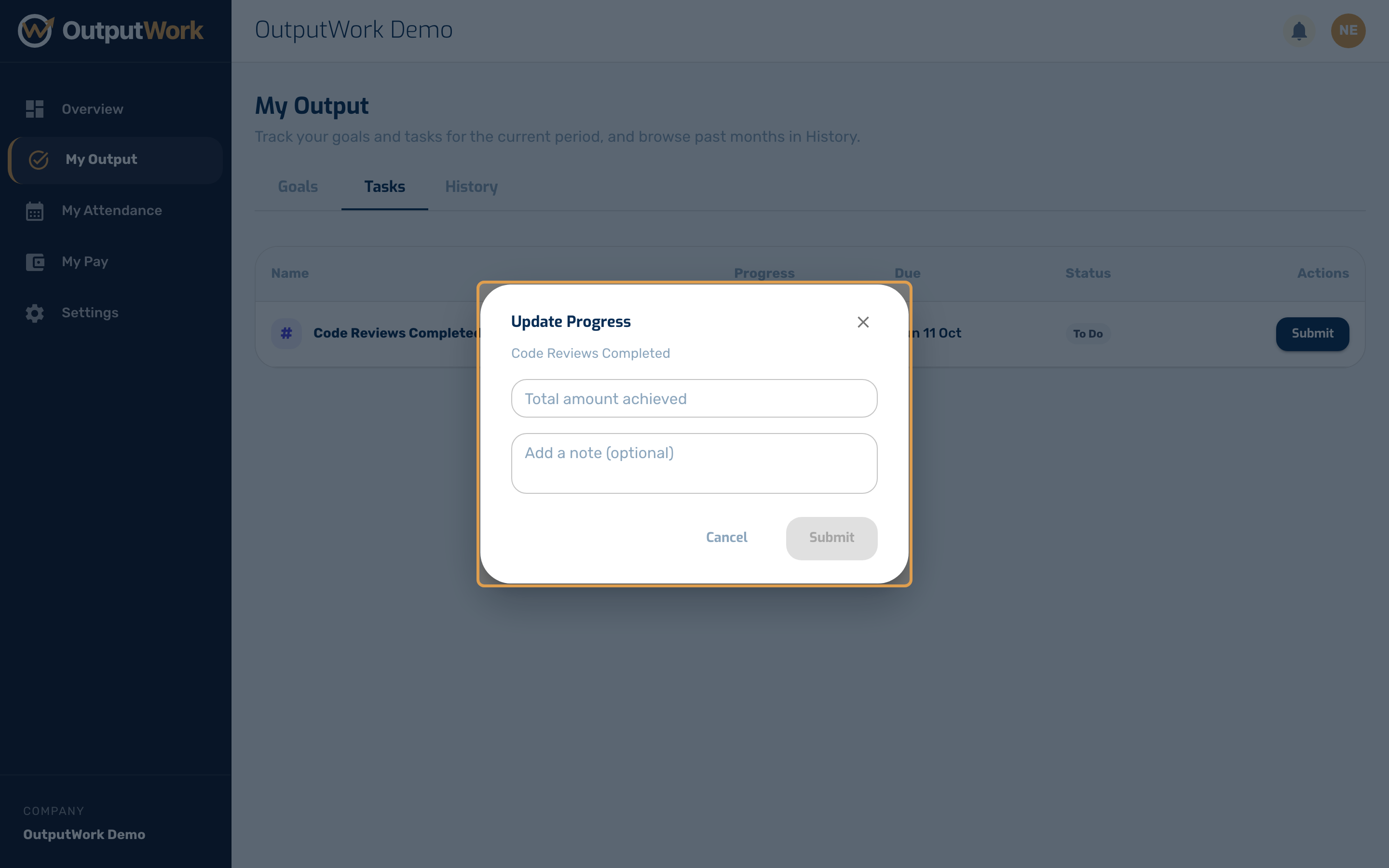
Step 4. If your work is rejected you will see the reason on the row, and the button changes to Re-submit. Fix what was asked for and send it again — the reason disappears once you do.
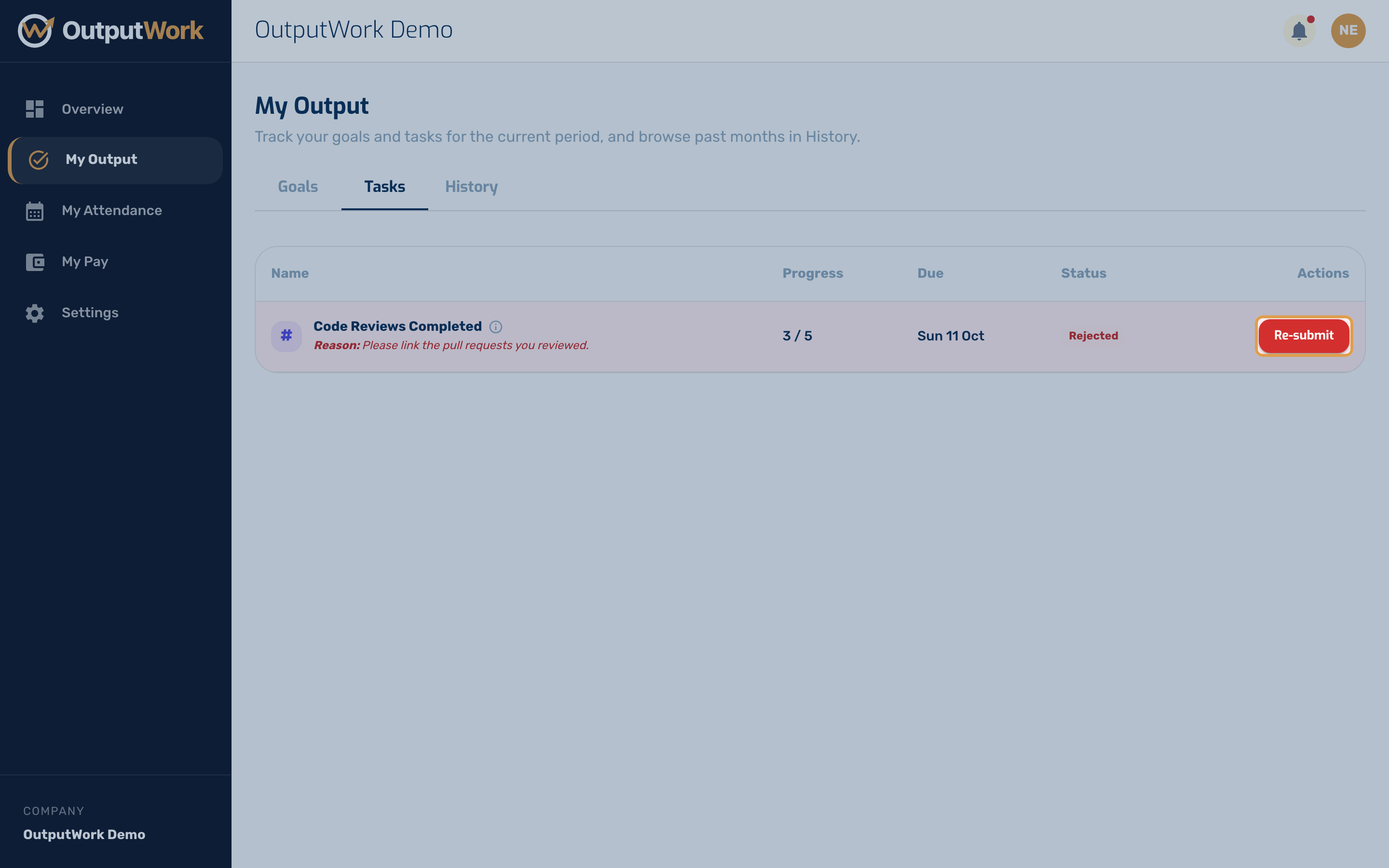
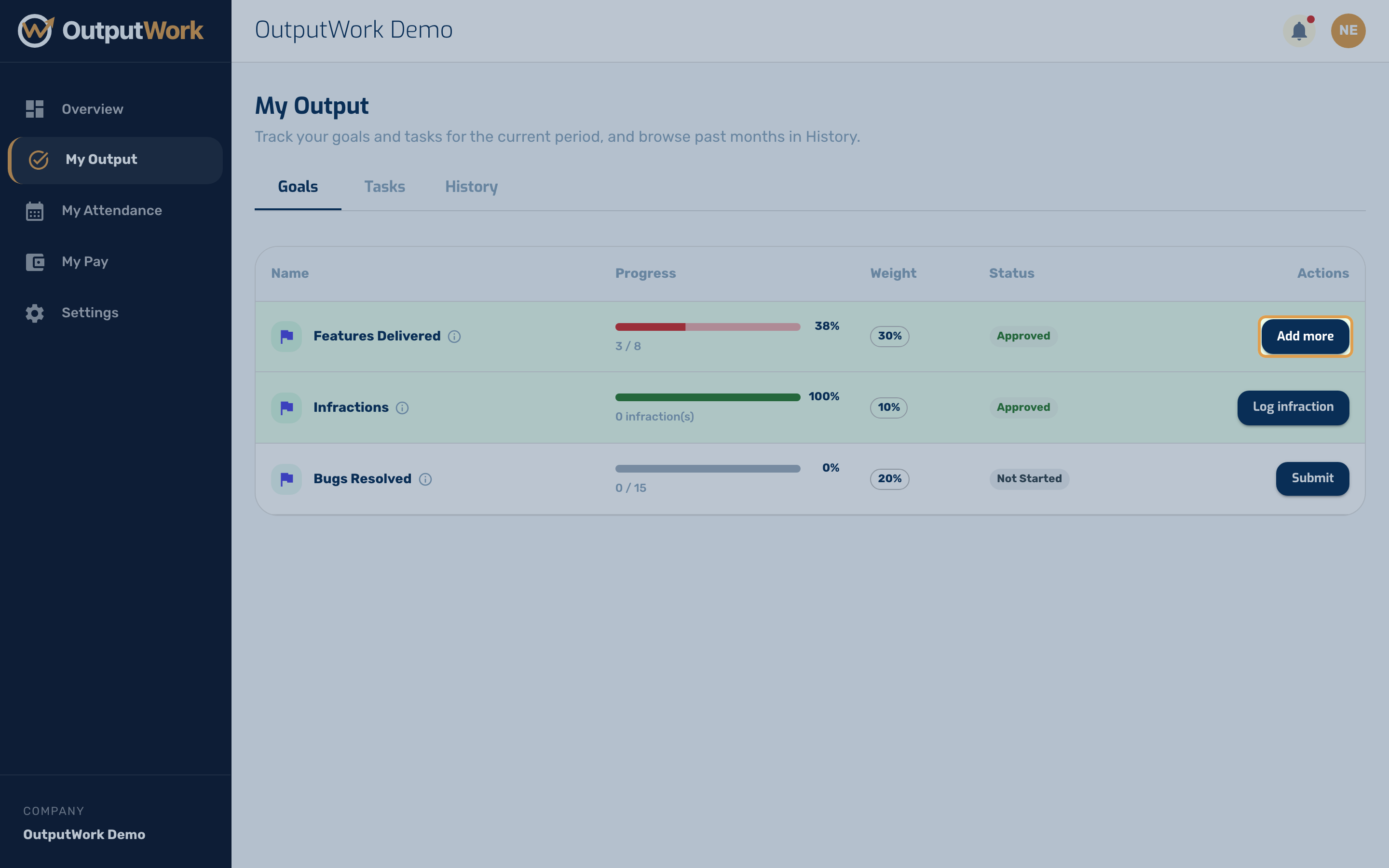
Step 5. Once something is approved, the button becomes Add more. This is the one to watch: it adds to your existing total rather than replacing it, so use it when you have done more of the same thing later in the period.
Step 6. Every task has a due time: the end of its day, week or month. Submit before then. Once it passes, the task leaves your Tasks list and moves to History:
- A task you never submitted shows there as Incomplete and counts as zero in your score. It is closed overnight, after which nothing can change it.
- Work you submitted in time but nobody has reviewed yet is safe: it stays Pending, and your reviewer can still approve it.
Troubleshooting Work Submissions
- "Task is locked or overdue": Tasks lock at the end of their period (day, week, or month). A locked task cannot be submitted by a team member without a manager unlocking or extending it.
- Quantity Submission & Overachievement: For quantity tasks, enter the exact numeric units completed. Overachievement is allowed but score points are capped at a maximum of 200%.
- Pending Review: Tasks set to "Always review" or submissions with "Send for review" ticked will remain in pending review until approved by a reviewer before score points reflect on your dashboard.