Your Profile and Preferences
Update your own details, change your password, and switch the theme.
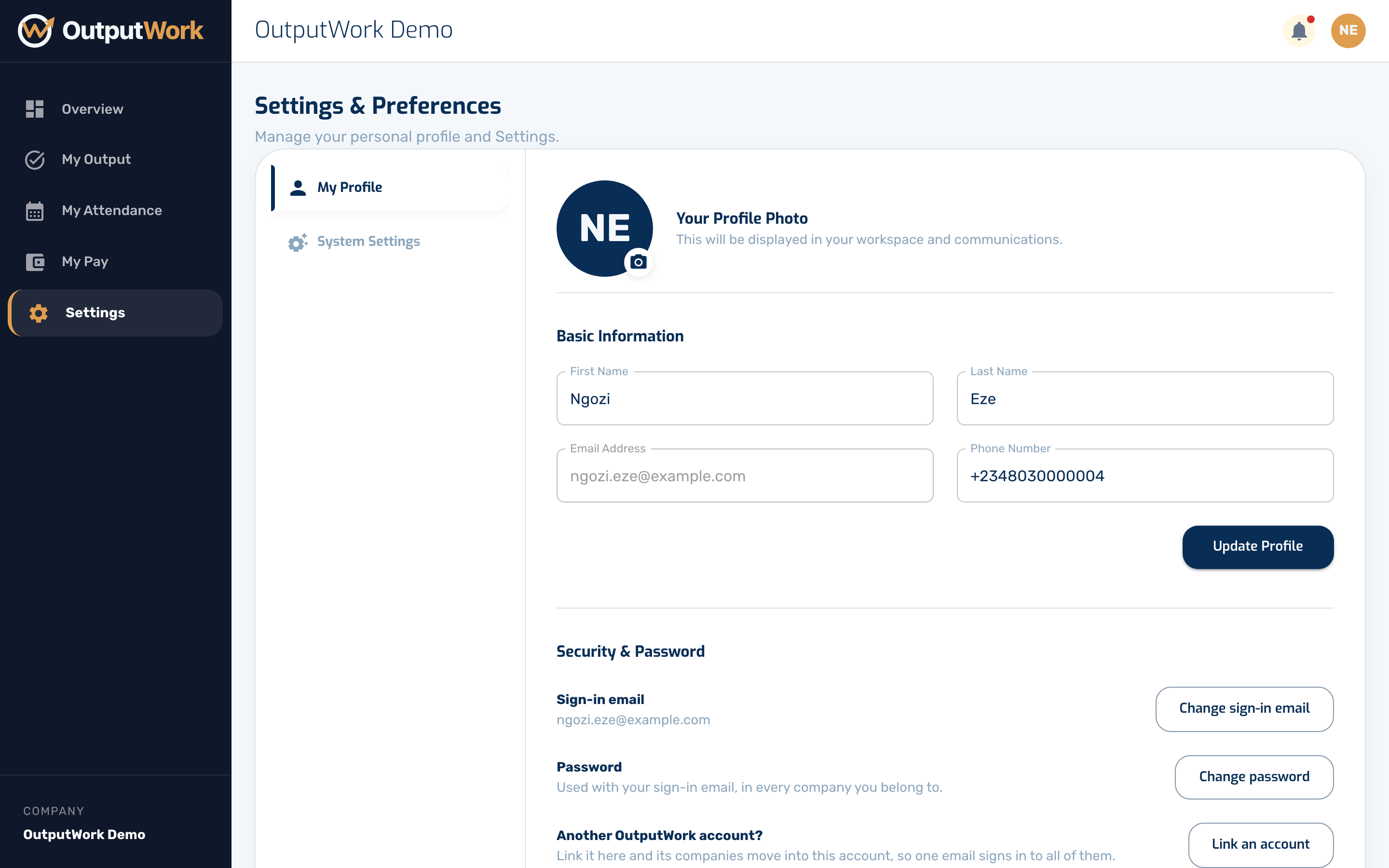
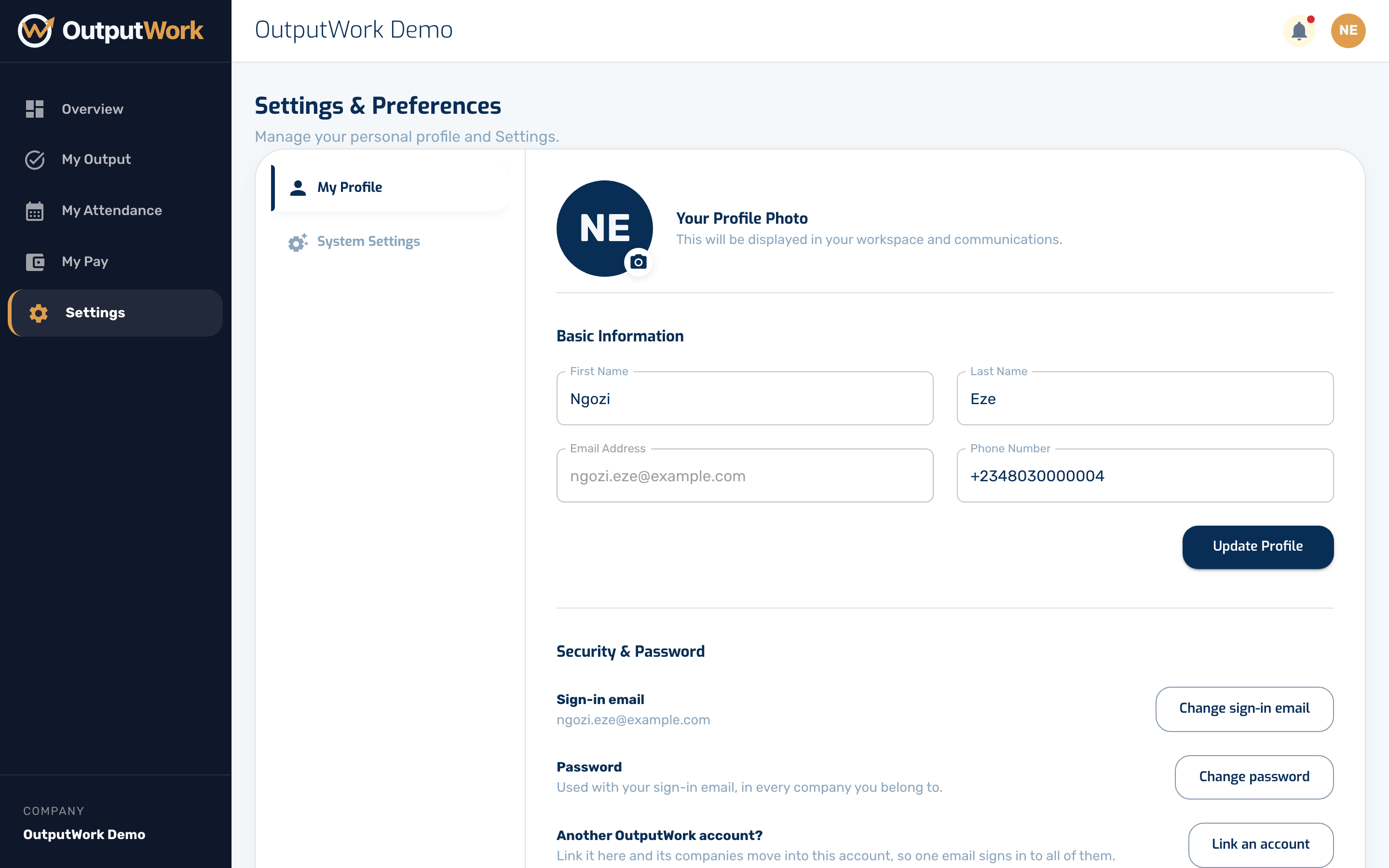
Step 1. Settings is where you keep your own details current. Under My Profile you can update your phone number and photo.
Email Address is the address your organization has for you, where it sends your messages. If it differs from the email you sign in with, it's labelled Company Email.
Further down, Security & Password holds how you sign in: your sign-in email, your password, and linking another account. See Changing Your Sign-in Email and Linking Two Accounts.
Keeping your phone number right matters if your organization uses WhatsApp — that is where your task reminders go, and the number OutputWork recognises when you reply.
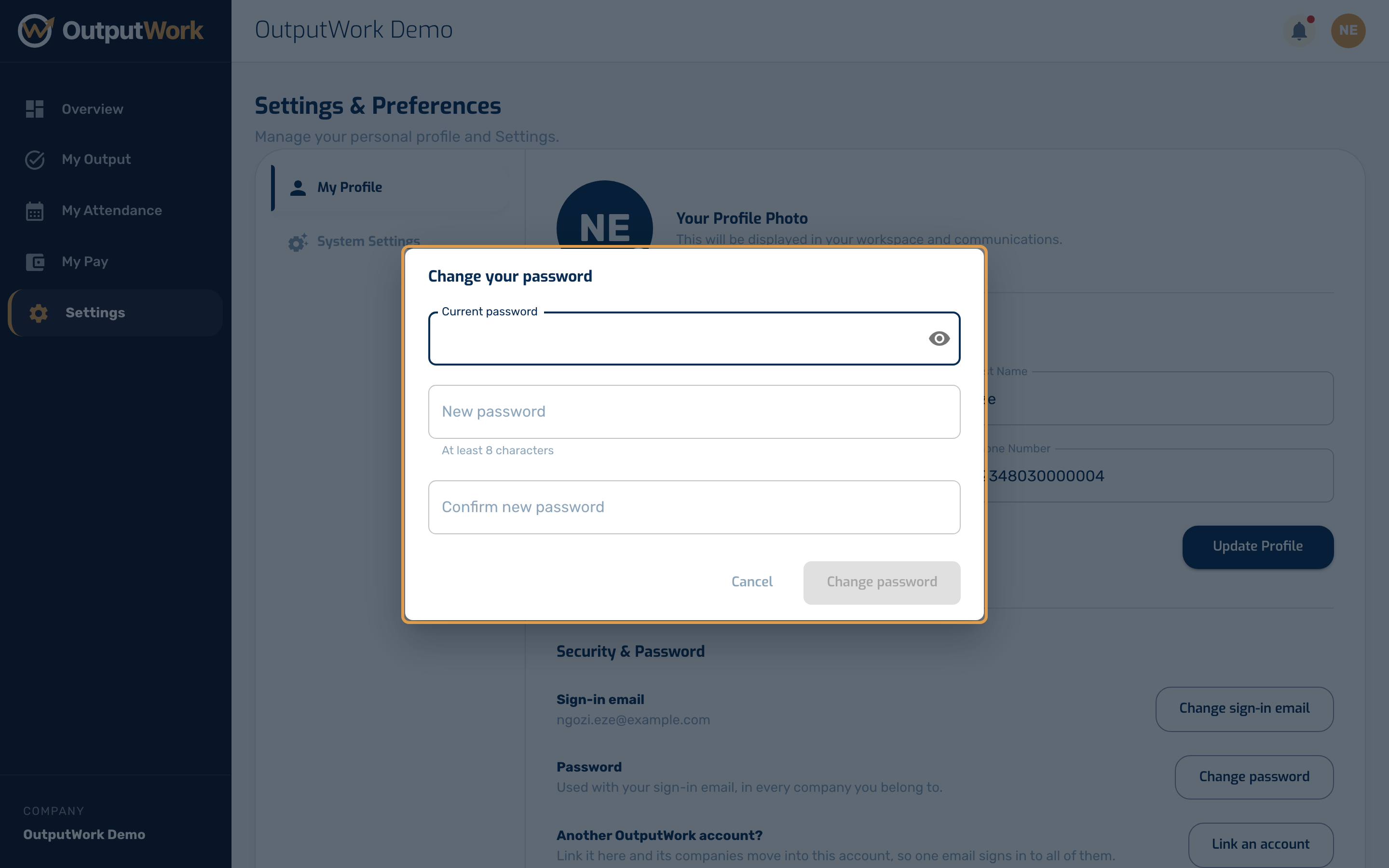
Step 2. To change your password, click Change password under Security & Password. Enter your current password, then the new one twice (at least 8 characters), and click Change password. If the current one is wrong it says so, and nothing changes.
Step 3. System Settings holds the theme. Switch between light and dark and it applies straight away — there is no save button, and the choice is remembered on this device.
This is a personal preference: it changes nothing for anyone else in your organization.