Managing Your Reports
For team leads: see how your reports are doing and review their work.
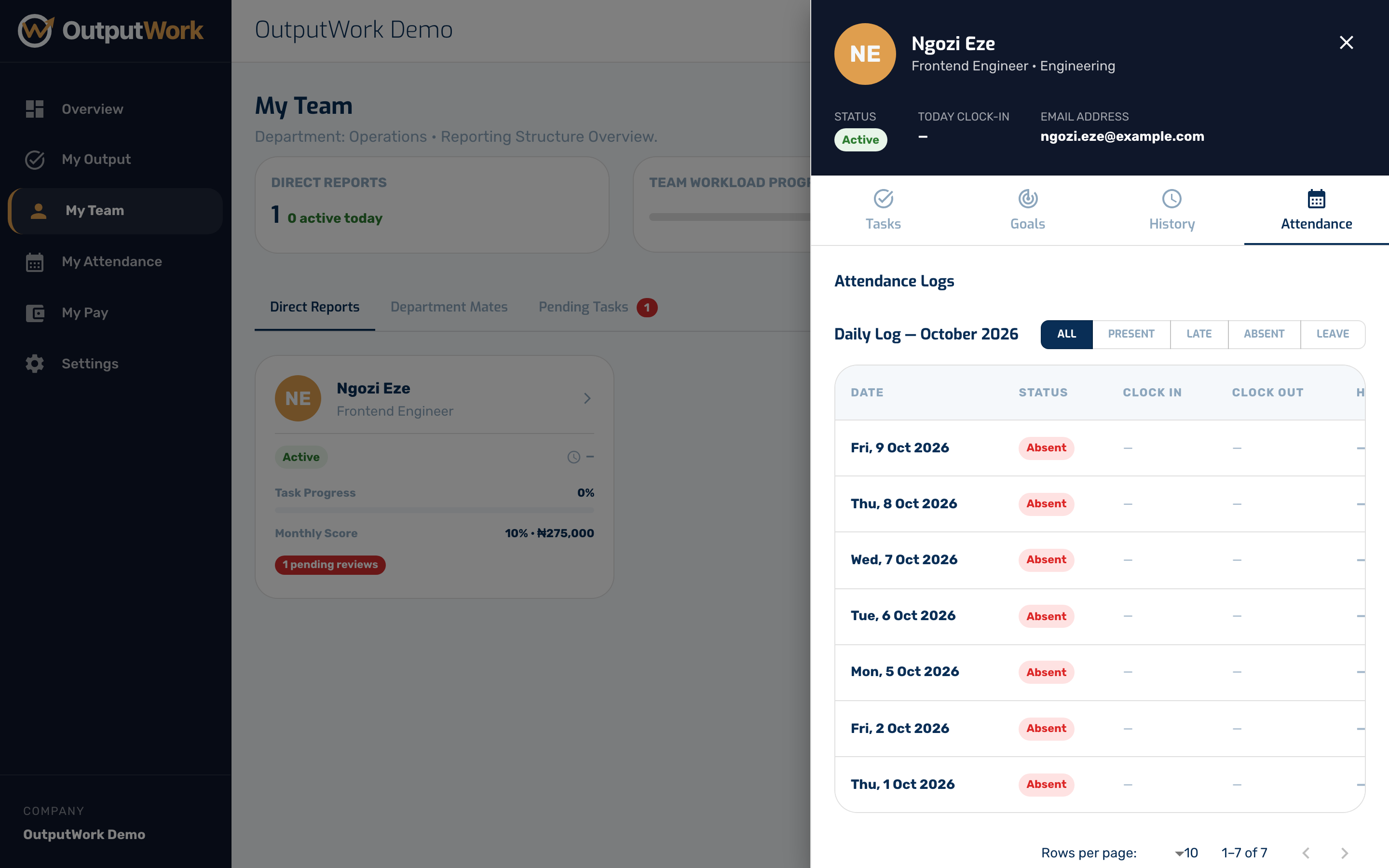
Step 1. If your role is a lead role, you get a My Team page the other team members do not see. It lists your direct reports and how each of them is tracking.
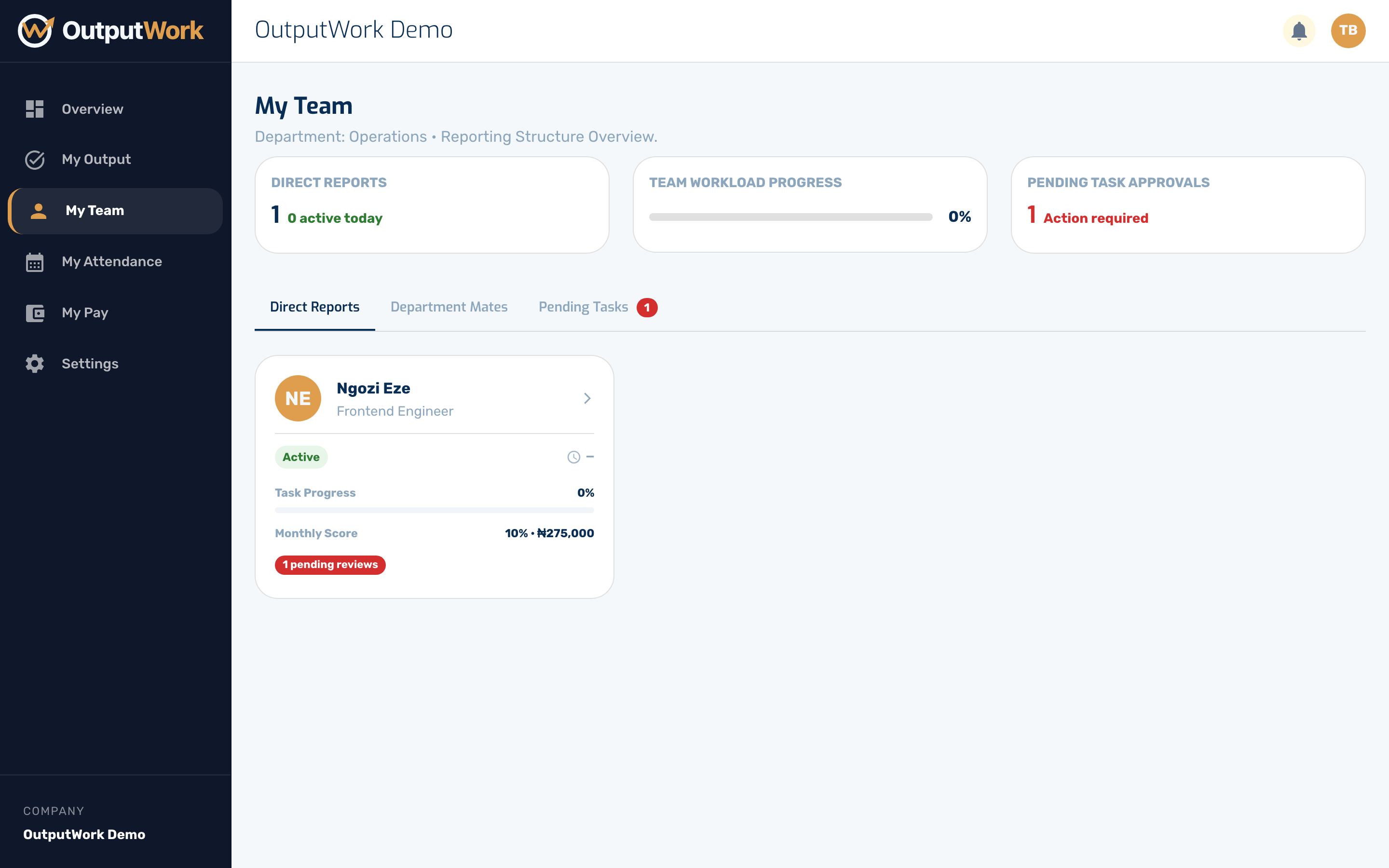
Step 2. Work your reports submit comes to you for review as well as to the owner. The Pending Tasks tab is the queue; the badge counts what is waiting on you.
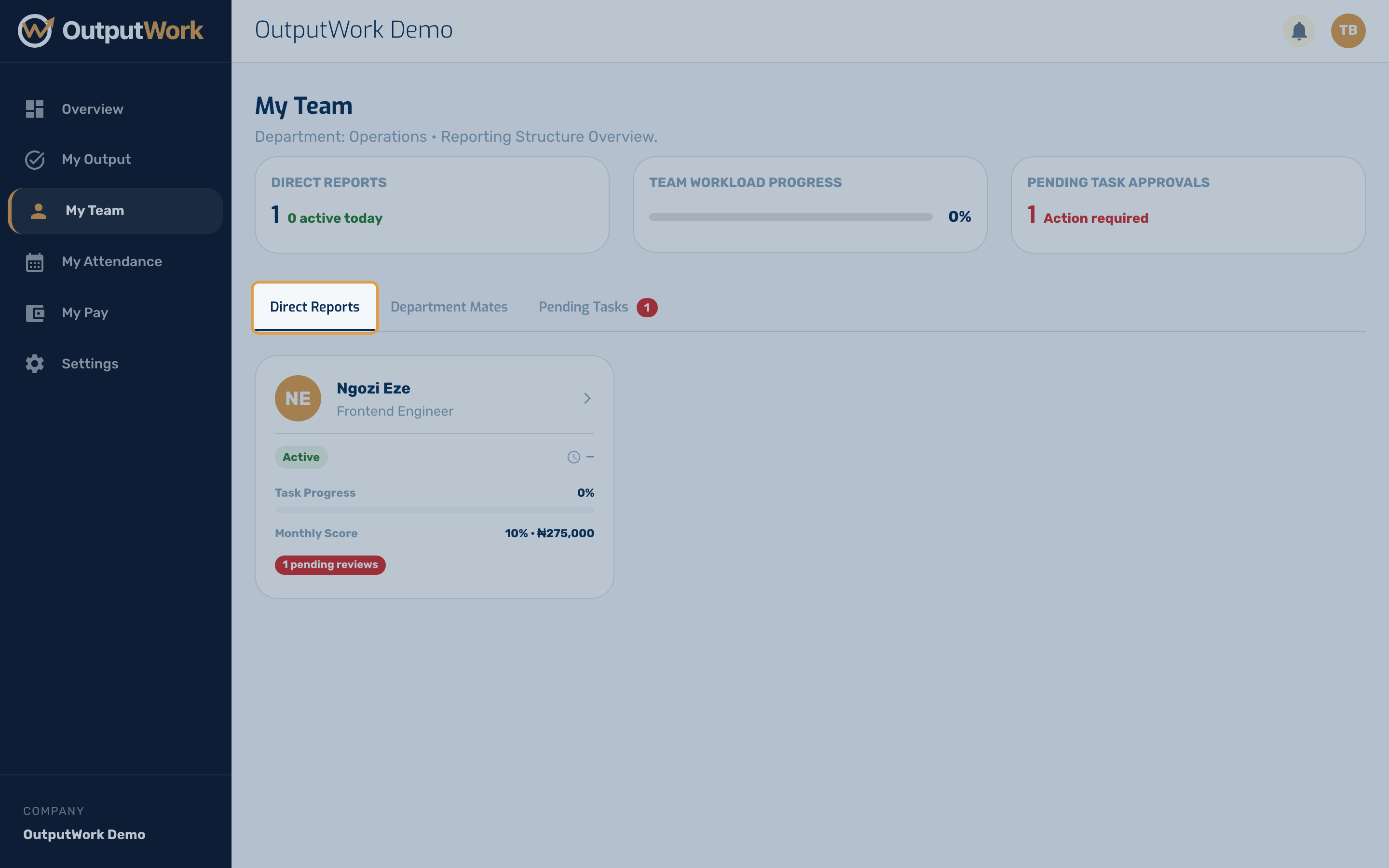
Step 3. Click anyone in Direct Reports to open their panel. It opens on Tasks — everything they are working on this period, with Approve and Reject on anything awaiting review.
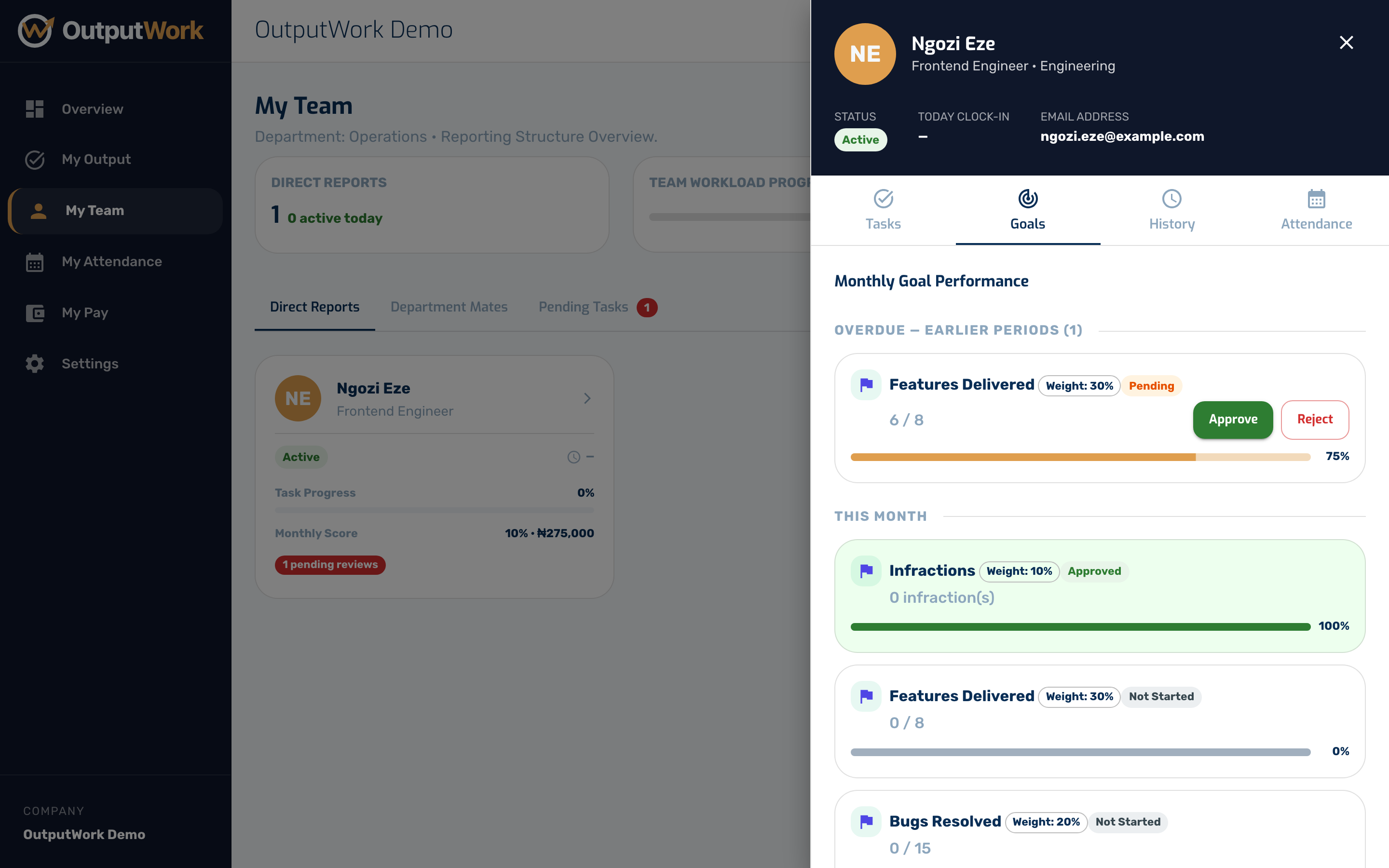
Step 4. Goals shows the targets attached to their role and how far along they are.
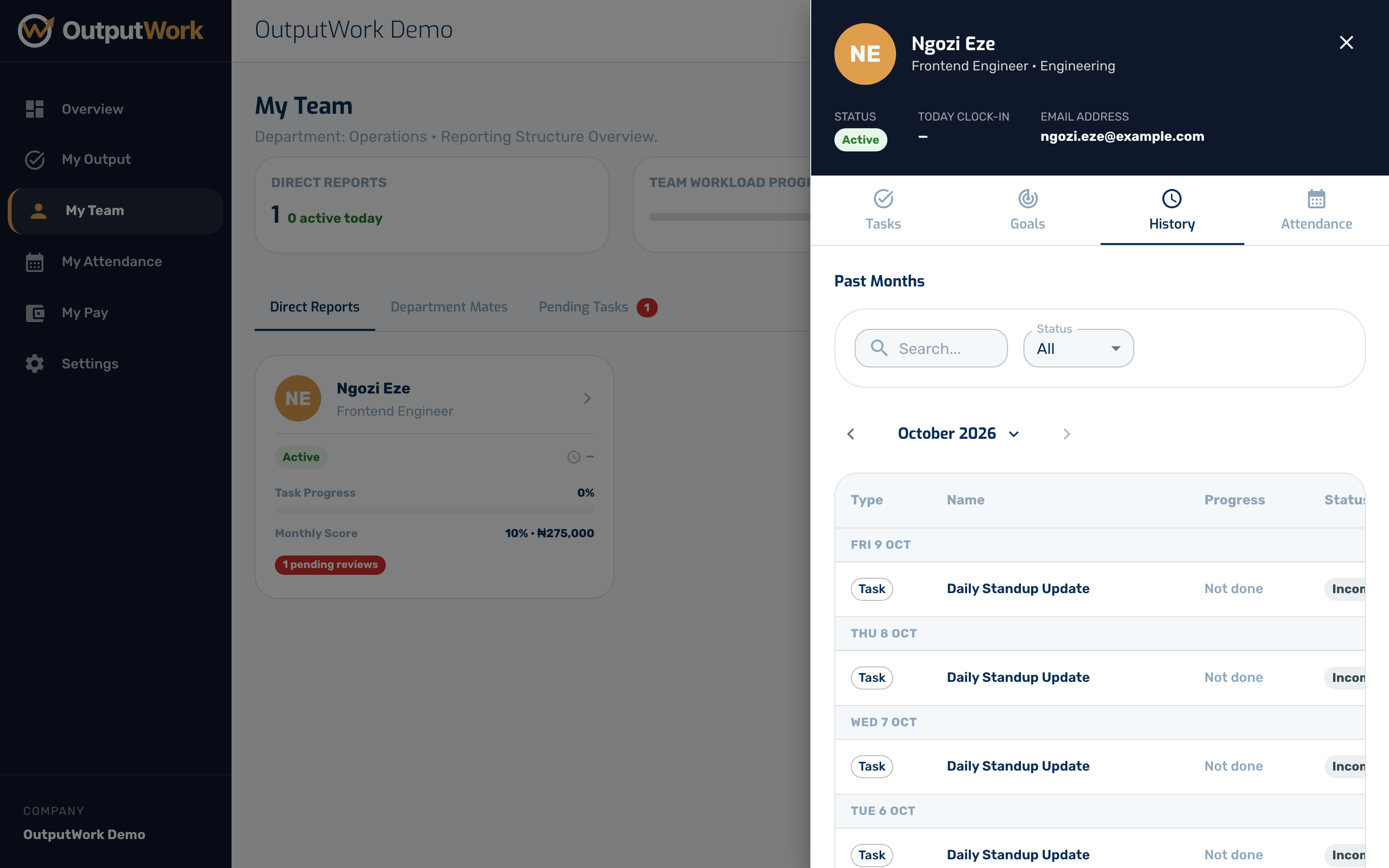
Step 5. History is their record from previous months, so you can see a pattern rather than a single period.
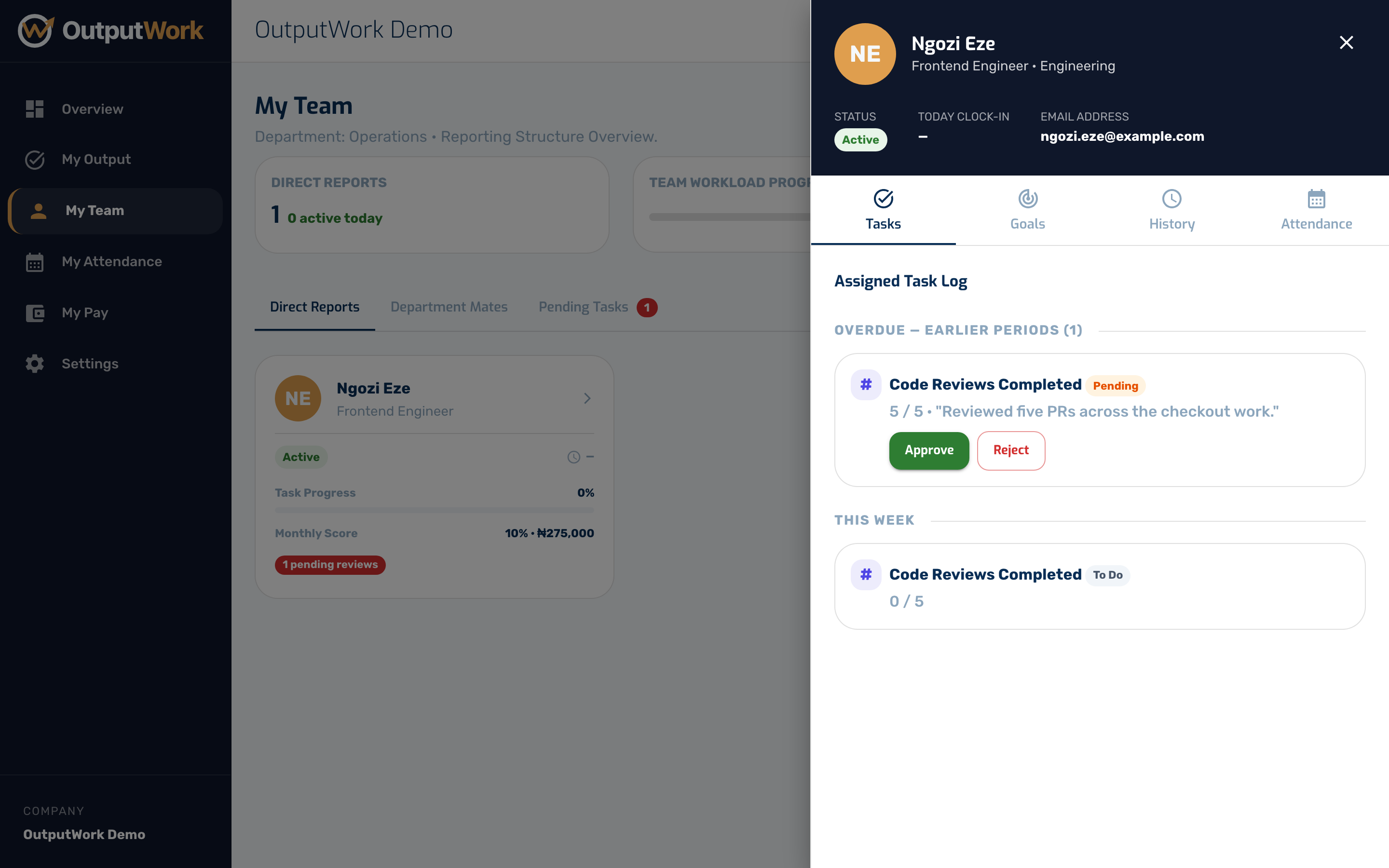
Step 6. Attendance shows when they clocked in and out, and whether they were on time.